License Activation
You don't need a license to use Load Tester
Load Tester runs immediately on install. No account or license is required to get started. Without a license you can record test cases, configure them with AI assistance (using your own LLM API key), and run load tests locally with as many virtual users as your CPU and bandwidth can sustain. There's no built-in VU cap on the Free tier.
A Pro license unlocks scale and team features that go beyond a single machine: distributed cloud load generation, multi-run trend analysis, executive narrative reports, team workspaces, and more. The Free vs Pro feature split evolves; the current breakdown is on the purchase configure page.
If you have a license, the rest of this page walks through activation. If you don't, skip to the Quick Start Tutorial. You're ready to record and run tests.
Load Tester uses portal-based licensing. Your licenses live in your Web Performance account, and you activate them from within the software by syncing with the portal. No license files to manage, no activation codes to type.
Before You Start
Make sure you have:
- A Web Performance account with an active license
- Internet connection for the software to contact the portal
- Your account credentials (you'll log in through the portal if needed)
How Portal-Based Licensing Works
Load Tester connects to the Web Performance portal to:
- Activate licenses on your current computer
- Deactivate licenses when moving to a different computer
Everything is handled through your portal account.
First-Time Activation
The first time you launch Load Tester, you need to activate your license.
Step 1: Open the Licenses Preferences
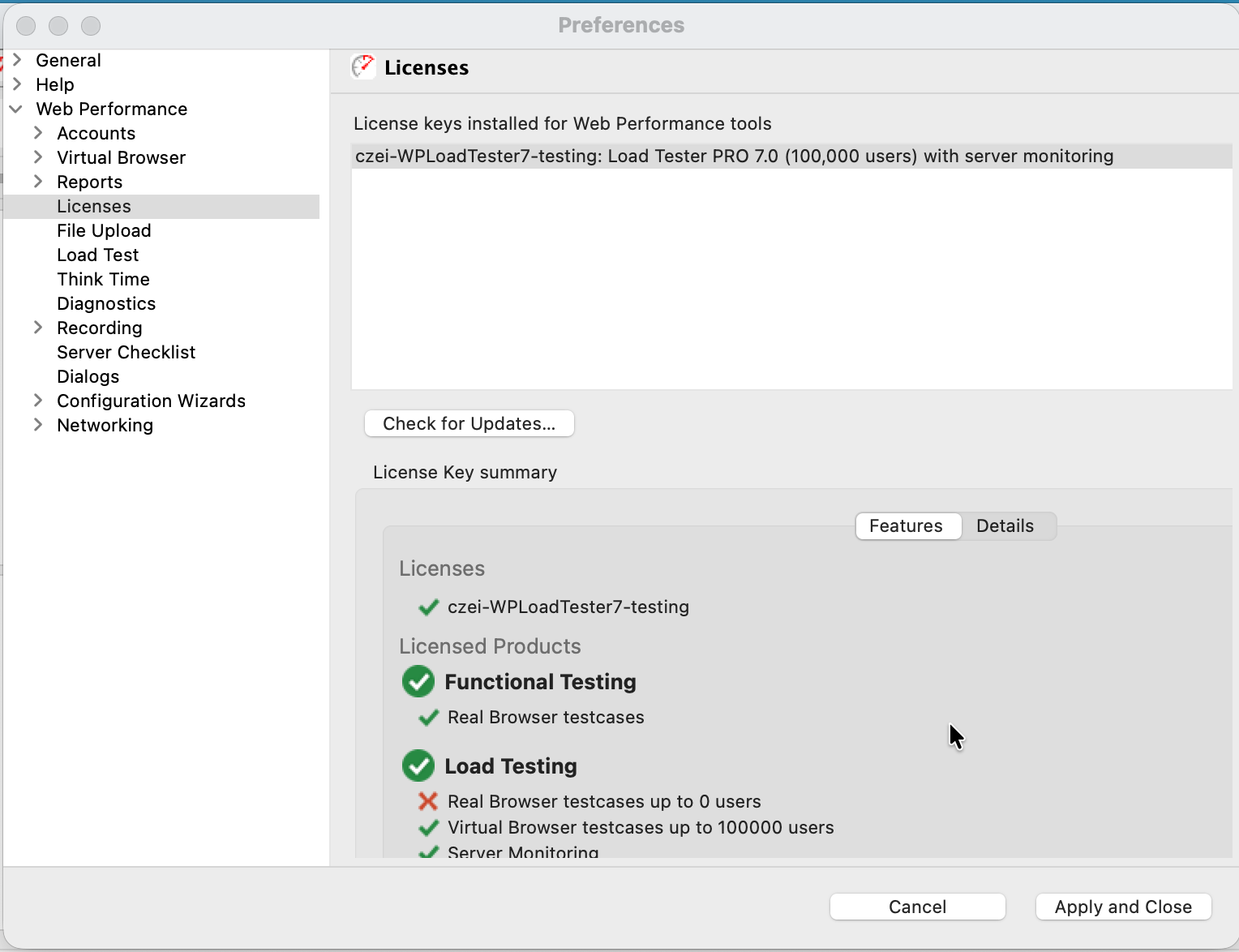
- Select Help → Licenses from the menu bar. The Licenses preferences dialog opens, showing any licenses currently installed.
Step 2: Sync with Your Portal Account
- Click the "Check for Updates..." button. Load Tester contacts the portal and pulls down the licenses associated with your account.
First Time?
If you haven't logged into the portal from this computer before, you may be prompted to enter your Web Performance account credentials. Use the same login you use at webperformance.com/portal.
Step 3: Activate Your License
- Select your license from the list
The license appears with your account name and product details:
- Click the activation button (if not already activated)
The license activates immediately and shows a green checkmark (✓) next to it.
Step 4: Verify Licensed Features
- Review the "License Key summary" section
The Features tab shows which capabilities are enabled with your license:
- Functional Testing - Real Browser test cases
- Load Testing - Virtual Browser test cases (up to your licensed user count)
- Server Monitoring - CPU, memory, and disk monitoring
That's it! Your software is now licensed and ready to use.
Moving Your License to a New Computer
Deactivate your license on the old computer before activating on the new one.
Step 1: Deactivate on the Old Computer
-
Open Help → Licenses on your current computer
-
Select your active license (the one with the green checkmark)
-
Click the "Deactivate" button. The license deactivates immediately and is now free to activate on another machine.
Deactivate First
You must deactivate on the old computer before activating on the new one. If you skip this step, the new computer won't be able to activate the license.
Step 2: Activate on the New Computer
-
Install Load Tester on your new computer
-
Follow the first-time activation steps above:
- Help → Licenses
- Check for Updates...
- Select your license
- Activate
Your license is now active on the new computer.
Understanding License States
Your license can be in one of these states:
| State | What It Means |
|---|---|
| ✓ Active (green checkmark) | License is activated on this computer and ready to use |
| Available (no checkmark) | License is associated with your account but not activated on this computer |
| Deactivated (no checkmark) | License was previously active but has been deactivated |
The portal tracks which computer each license is activated on. You can have multiple licenses in your account, but each one can only be active on one computer at a time.
Checking for License Updates
When your account administrator adds new licenses, increases your user count, or extends your maintenance:
-
Open Help → Licenses
-
Click "Check for Updates..."
The software syncs with the portal and shows any changes to your account.
Syncing picks up new licenses, renewal extensions, and feature upgrades (like adding server monitoring) immediately.
Troubleshooting
License Doesn't Appear After "Check for Updates"
Cause: The license isn't associated with your account in the portal.
Solution:
- Log into webperformance.com/portal and verify the license appears in your account
- If missing, contact sales@webperformance.com to have the license added to your account
- Once added, run "Check for Updates..." again in the software
Can't Activate - Says "Already Active"
Cause: The license is still activated on another computer.
Solution:
- Deactivate the license on the other computer first
- If you can't access the other computer, contact support@webperformance.com to reset the license
"Check for Updates" Fails - No Internet Connection
Cause: The software can't reach the Web Performance portal.
Solution:
- Verify your internet connection is working (try opening webperformance.com in a browser)
- Check if your firewall is blocking the Load Tester application
- If behind a corporate proxy, configure proxy settings in the software preferences
Workaround: Contact support@webperformance.com for offline activation options.
Software Says "License Expired"
Cause: Your maintenance period has ended.
Solution: Contact sales@webperformance.com to renew your maintenance. Once renewed, run "Check for Updates..." to refresh.
Old Computer Is Gone - Can't Deactivate
Cause: You've already disposed of or lost access to the computer where the license was activated.
Solution: Contact support@webperformance.com with your license serial number. Support can remotely reset your license so you can activate it on a new computer.
Frequently Asked Questions
Can I use the same license on multiple computers?
No. Each license is locked to one computer at a time. If you need Load Tester on multiple computers simultaneously, you need a license for each one.
You can, however, move a license between computers by deactivating on the first and reactivating on the second.
What happens if I reinstall the operating system?
You'll need to deactivate and reactivate. A fresh OS install changes the computer's identity, so the previously activated license won't work.
Deactivate before you reinstall, then reactivate after the fresh install.
Do I need internet access after activation?
The software periodically verifies your license (about once a month). It needs internet access for activation, deactivation, monthly validation, and checking for license changes in your portal account.
If your internet connection is temporarily down, the software keeps working. Validation failures only trigger after an extended period without connectivity.
Can multiple users share one license?
No. Each user needs their own license. Attempting to share a license by copying activation data between computers may trigger license revocation.
What's the difference between activation and my portal account?
- Portal account: Where you manage licenses, view usage, download installers, access support
- Activation: The process that locks a specific license to your computer
Your portal account holds your purchased licenses. Activation locks a specific license to your specific computer.
How do I know which license to activate?
If you have multiple licenses in your account:
- Check the license description:
Load Tester PRO 7.0 (100,000 users) with server monitoring - Look at the user count (10,000 vs 100,000 vs unlimited)
- Check for "server monitoring" if you need that feature
If unsure, contact support@webperformance.com to identify which license is correct for your needs.
Next Steps
Now that your license is activated:
- Follow the Quick Start Tutorial to record and run your first load test
- Explore the UI to familiarize yourself with the interface
- Learn about recording to start creating test cases
Related Topics: - Installation - Quick Start Tutorial - System Requirements - Getting Help & Support