Salesforce
Salesforce apps are uniquely challenging to load test. Not because they're difficult to record, but because auto-generated forms use dynamically changing field names (not just field values). A field that was j_id0:form1:input23 during recording might be j_id0:form1:input47 during replay. Load Tester handles this automatically with ASM (Application State Management), but Salesforce test cases require significantly longer processing time than typical web apps.
Why build on Salesforce: CRM functionality is so integral to business workflows that writing a Salesforce app is often cheaper and faster than building from scratch. Why reinvent the wheel when half the functionality you need already exists?
Why load test Salesforce: Just like a fully custom app, Salesforce apps need performance testing, especially when integrating into existing back-office or third-party systems. If 500 sales reps simultaneously refresh a dashboard, will the app hold up?
This guide shows you how to:
- Record and replay Salesforce applications despite dynamic field names
- Configure ASM to handle Salesforce's auto-generated forms
- Troubleshoot common Salesforce-specific correlation issues
- Optimize ASM processing time for complex Salesforce apps
The Salesforce Challenge: Dynamic Field Names
Most web applications use static field names with dynamic values:
<!-- Typical web app (static field name, dynamic value) -->
<input name="username" value="john.doe">
<input name="sessionId" value="ABC123XYZ">
Load Tester handles this easily: ASM extracts the dynamic value (ABC123XYZ) and replaces it on replay, but the field name (sessionId) stays constant.
Salesforce Uses Dynamic Field Names
Salesforce auto-generates field names that change across recordings and even across replays:
<!-- Salesforce (BOTH field name AND value are dynamic) -->
<input name="j_id0:form1:input23" value="john.doe">
<input name="j_id0:form1:input47" value="ABC123XYZ">
On the next recording, the same fields might be:
<!-- Same fields, different names -->
<input name="j_id0:form1:input31" value="john.doe">
<input name="j_id0:form1:input52" value="ABC123XYZ">
Why this happens: Salesforce generates field names dynamically based on component rendering order, which changes when:
- Developers modify the Salesforce app configuration
- Conditional UI logic shows/hides components
- Salesforce deploys platform updates
- Components are added/removed from the page
The result: if Load Tester replayed the exact field names from recording, every field would be wrong. The test case would fail immediately.
Solution: ASM Handles Dynamic Field Names Automatically
ASM doesn't just extract dynamic values; it also maps dynamic field names. When you run the ASM wizard on a Salesforce test case, Load Tester:
- Analyzes field name patterns across all requests/responses
- Identifies which fields are dynamic (names change) vs. static (names stay constant)
- Creates correlation rules to map recorded field names to replay field names
- Extracts values from responses and inserts them into subsequent requests using the correct field names
This is transparent: you don't manually configure field name mapping. ASM detects it automatically.
Recording a Salesforce Application
Salesforce apps record like any other web application. ASM handles the complexity during configuration, not recording.
Record the Test Case
- Open Load Tester → File → New → Test Case
- Select: New from browser recording
- Chrome opens automatically (Load Tester's v7.0 Chrome extension)
- Navigate to your Salesforce app and log in
- Perform your workflow (e.g., create a lead, update opportunity, run a report)
- Stop the recording when finished
Recording tips for Salesforce:
- Keep workflows focused: Record one business operation per test case (create lead, update opportunity, etc.)
- Don't rush: Salesforce apps often have AJAX delays, so wait for pages to fully load before clicking
- Avoid administrative actions: Focus on end-user workflows (sales, service, marketing) rather than admin configuration
Result: A test case with dozens to hundreds of HTTP transactions, many containing Salesforce's dynamic field names.
Configuring ASM for Salesforce
After recording, run the Configure for Replay wizard. Page one (Hostname Overview) lets you drop the third-party hostnames Salesforce pulls in. Page two (ASM) is where Load Tester analyzes Salesforce's dynamic field names and configures correlation rules.
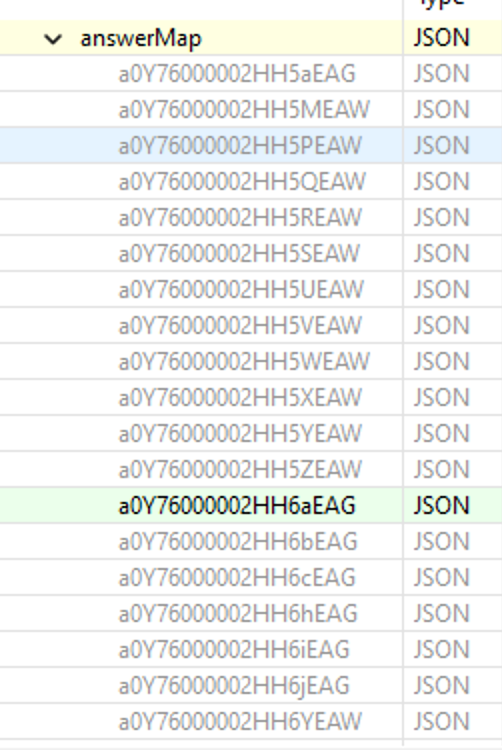
The screenshot above shows what ASM is up against: a single Salesforce answerMap containing many JSON fields whose names are 18-character record IDs (a0Y76000002HH5aEAG, a0Y76000002HH5MEAW, …). Every recording assigns different IDs; replay has to translate the recorded names to the new ones. Multiply this by every form in the workflow and you have the field-name correlation problem ASM solves automatically.
Run the Configure for Replay Wizard
- Right-click the test case in Navigator → Configure → Configure for Replay...
- Hostname Overview (page 1): Check the Salesforce hostnames (typically
*.salesforce.com,*.force.com,*.lightning.force.com) and uncheck third parties. Click Next. - ASM (page 2): Use default settings and click Finish. ASM analyzes the test case:
- Identifies dynamic field names (Salesforce-specific patterns like
j_id0:form1:input*) - Detects session tokens, CSRF tokens, view states
- Creates correlation rules for field name mapping
- Wait for processing to complete
Processing time:
- Simple Salesforce workflows (5-10 pages): ~5-15 minutes
- Complex workflows (20+ pages, multiple forms): ~30 minutes to 2 hours
- Very complex apps (40+ pages, deep integrations): Several hours
Why ASM takes longer on Salesforce: Typical web apps have hundreds of dynamic fields. Salesforce apps often have thousands to tens of thousands. We've tested apps with over 40,000 fields requiring dynamic configuration. ASM must analyze every single one.
What ASM Configures Automatically
After ASM completes, Load Tester has configured:
- Dynamic field name mapping - Maps recorded field names to replay field names
- ViewState correlation - Salesforce's server-side state tracking mechanism
- CSRF token extraction - Security tokens that change on every request
- Session tracking - Salesforce session IDs and cookies
- Form field correlation - Values submitted in forms that depend on previous responses
You don't manually configure any of this. ASM detects Salesforce patterns and handles them automatically.
Testing the Configuration
After ASM completes, verify the test case replays successfully.
Run a Replay
- Click Play (▶️) to replay the test case
- Watch Replay View: Transactions should complete successfully (green)
- Check for field correlation errors:
- If replay fails with 400/500 errors: Field names might not be correlating correctly
- If Salesforce returns "Invalid field" errors: ASM missed a dynamic field name
Common replay issues:
- First few transactions green, then all red → Session or ViewState not correlating
- Specific forms fail consistently → Field names on that form aren't mapping correctly
- Intermittent failures → Salesforce app has conditional UI logic that changes field names unpredictably
See: Debugging Failed Replays for systematic troubleshooting.
Troubleshooting Salesforce-Specific Issues
Problem: ASM Takes Too Long (Hours)
Symptom: ASM wizard has been running for 3+ hours and you need results faster
Cause: Salesforce app has tens of thousands of fields, and ASM is analyzing every permutation
Solutions:
Solution 1: Simplify the Test Case
Before running ASM, reduce the test case complexity:
- Remove unnecessary pages - Delete pages that aren't critical to the workflow
- Remove 3rd-party content - Block analytics, ads, external widgets during recording (see Recording Settings)
- Focus on one operation - Instead of recording "login → create lead → update lead → create opportunity", record just "create lead"
Run ASM on the simplified test case - should complete much faster.
Solution 2: Run ASM Overnight
If you can't simplify the test case, run ASM overnight:
- Start ASM wizard at end of day
- Let it run overnight (3-8 hours typical for very complex apps)
- Check results in the morning
Why this works: Complex Salesforce apps genuinely require analyzing thousands of fields. There is no shortcut. ASM must examine every field to determine correlation rules. The good news is that this time cost is a one-time expense (configuration), not an ongoing cost (load testing).
Solution 3: Use Faster Hardware
ASM is CPU-intensive - faster processors complete analysis sooner:
- 4-core CPU: 2-4 hours for complex Salesforce apps
- 8-core CPU: 1-2 hours
- 16-core CPU: 30-60 minutes
If you regularly test complex Salesforce apps, consider upgrading your Load Tester workstation.
Problem: Replay Fails with "Invalid Field" Errors
Symptom: Salesforce returns errors like "Invalid field name" or "Field not found" during replay
Cause: ASM missed a dynamic field name (field name changed between recording and replay, but ASM didn't configure correlation)
Fix:
- Identify which field failed - Check Headers View for the failing request
- Manually configure the field - See Configuring Dynamic Fields. Typically this means adding a Regex Extractor that pulls the missing value from the response of an earlier transaction, then referencing the extracted variable wherever the field appears.
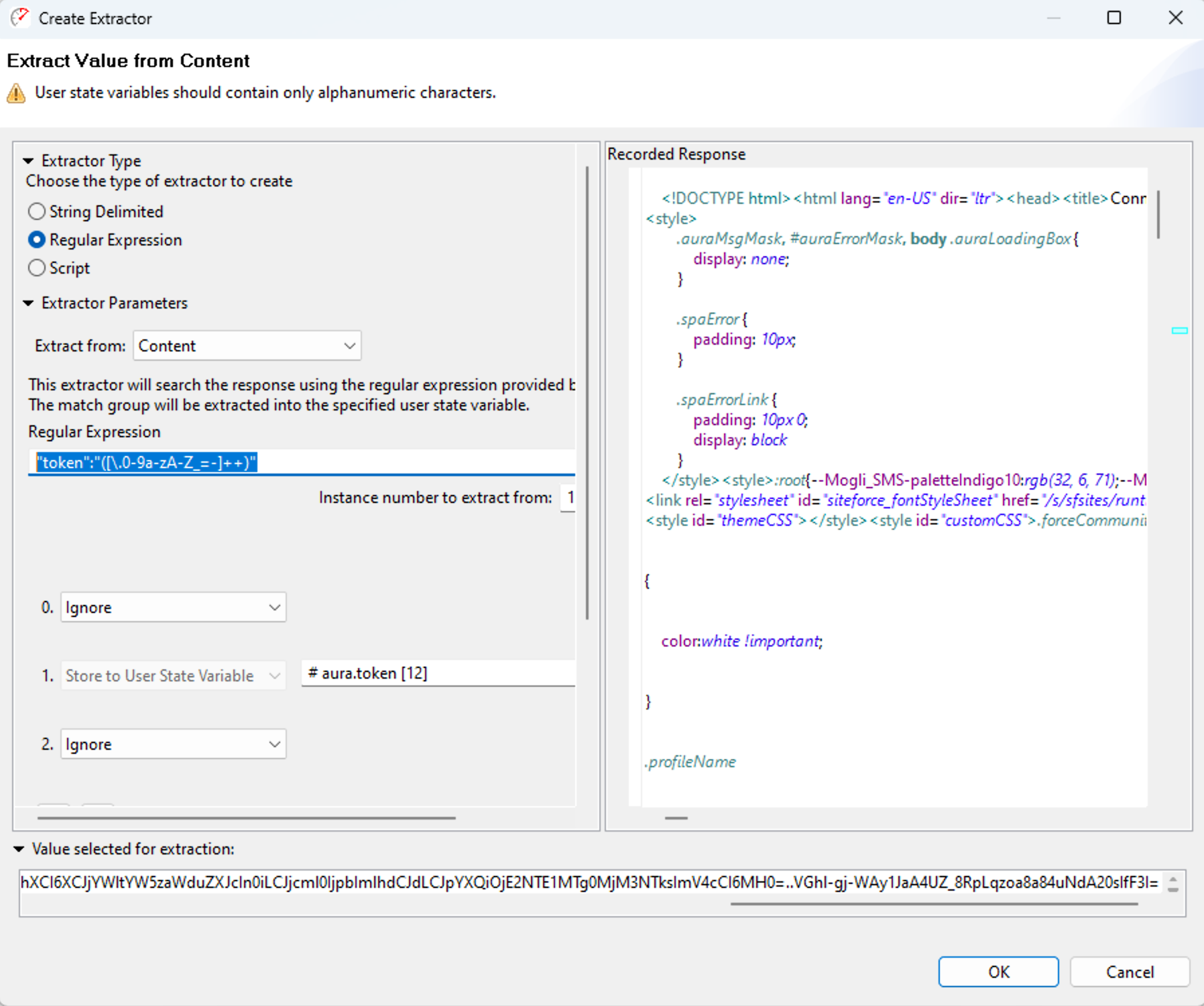
- Or: Re-record the test case and run ASM again (sometimes simpler than manual fixes)
Why ASM occasionally misses fields: Salesforce apps sometimes have conditional logic that generates field names based on runtime state (user permissions, data presence, etc.). If ASM doesn't see the field during analysis, it can't configure correlation.
Problem: ViewState Correlation Errors
Symptom: Replay fails with errors mentioning "ViewState" or "Invalid ViewState parameter"
Cause: Salesforce's ViewState parameter (server-side state tracking) isn't being extracted and replayed correctly
Fix:
- Re-run ASM wizard - ViewState correlation is configured automatically
- Verify ViewState extractor exists:
- Open Extractors View (Window → Show View → Extractors)
- Check for ViewState extractor on the page that returns ViewState
- If missing: Add manually using Boundary Extractor (left boundary:
name="ViewState" value=", right boundary:")
What ViewState does: Salesforce uses ViewState to track server-side component state across requests. It's similar to ASP.NET ViewState: a large base64-encoded string that must be extracted from responses and included in subsequent requests.
Problem: Forms Intermittently Fail
Symptom: Form submission succeeds sometimes but fails other times with "Invalid field" errors
Cause: Salesforce app has conditional UI logic that changes field names based on runtime conditions (data presence, user role, etc.)
Fix:
This is genuinely difficult because the field names are non-deterministic:
- Record multiple variations - Record the same workflow with different data/users to capture all field name variations
- Use JavaScript extractors - For advanced scenarios, use JavaScript to dynamically locate fields by label or position instead of field name
- Coordinate with developers - Ask the Salesforce development team if they can stabilize field names (use explicit IDs instead of auto-generated names)
Reality check: Some Salesforce apps are genuinely difficult to test via HTTP load testing because of extreme field name variability. If ASM can't stabilize the test case after multiple attempts, consider alternative approaches: lighter-weight testing, browser-driven testing with Selenium, or working with developers to stabilize field names.
Salesforce vs. Other Platforms
Salesforce isn't the only platform with dynamic field names, but it's the most aggressive:
| Platform | Dynamic Fields | ASM Processing Time | Difficulty |
|---|---|---|---|
| Typical Web App | 10-100 dynamic field values (static names) | 1-5 minutes | Easy |
| ASP.NET | ViewState + 100-500 dynamic fields | 5-15 minutes | Moderate |
| Salesforce | 1,000-40,000+ dynamic field names + ViewState + CSRF | 15 min - several hours | High |
| Custom CRM (non-Salesforce) | Varies widely | 5-30 minutes | Moderate |
The takeaway: Salesforce's challenge isn't impossible. It's expensive in time (ASM processing), but once configured, Salesforce test cases run load tests like anything else.
Load Testing Salesforce
After ASM configuration and replay verification, load testing proceeds normally:
- Configure datasets (if testing with multiple users) - See Datasets & Data-Driven Testing
- Configure load test - See Configuring a Load Test
- Run the load test - Click Run (▶️ in Load Test Config)
- Monitor results - See Analyzing Results
Salesforce-specific load testing considerations:
- Salesforce enforces API rate limits - If your app calls Salesforce APIs, verify rate limits won't throttle load tests
- Salesforce Lightning vs. Classic - Lightning apps generate significantly more HTTP traffic (more AJAX, heavier JavaScript) than Classic apps
- Salesforce integration limits - If your app integrates with external systems via Salesforce, test those integrations under load too
Advanced Topics
Custom Salesforce Objects
If your Salesforce app uses custom objects (not just standard Salesforce entities), ASM handles them the same way, since custom object fields are often dynamic too.
No special configuration needed - ASM detects custom object fields automatically during analysis.
Salesforce APIs
If your application calls Salesforce APIs directly (REST, SOAP, Bulk API), you can test those independently:
- REST API: See REST/API Testing
- SOAP API: See Web Services (SOAP/XML)
- Bulk API: Record the API calls via Load Tester's browser recording (if triggered by UI actions), or create test cases from request/response files
OAuth authentication: Salesforce APIs often require OAuth 2.0 - see OAuth & Bearer Tokens.
Salesforce Lightning Components
Lightning components generate heavy JavaScript and AJAX traffic. A single page load might result in 50-100 HTTP requests (compared to 5-10 for Salesforce Classic).
ASM handles Lightning components - no special configuration needed, but:
- Expect longer ASM processing time (more transactions to analyze)
- Expect larger test cases (more HTTP requests per workflow)
- Expect higher server load during load testing (Lightning apps are chattier than Classic apps)
Ask the AI to Configure Salesforce Tests
If you're stuck with Salesforce field correlation or ASM is taking too long:
I recorded a Salesforce app and ASM has been running for 2 hours. Can you help
me simplify the test case or troubleshoot why it's taking so long?
The AI can:
- Analyze your test case to identify which pages are causing long ASM processing
- Recommend which pages to remove to simplify the workflow
- Identify Salesforce-specific patterns (ViewState, dynamic field names) that ASM is handling
- Troubleshoot "Invalid field" errors by analyzing request/response headers
- Suggest manual correlation strategies for fields ASM missed
- Explain why certain Salesforce workflows are harder to test than others
Next Steps
After testing Salesforce apps:
- Run load tests: See Configuring a Load Test
- Analyze results: See Analyzing Results
- Monitor server performance: See Server Monitoring
For other platforms:
- Web Services (SOAP/XML): Web Services Testing
- REST APIs: REST/API Testing
For configuration topics:
- ASM basics: Application State Management
- Datasets: Datasets & Data-Driven Testing
- Authentication: OAuth & Bearer Tokens