REST/API Testing
Here's the key insight: when you record a website interaction, you're already capturing all the REST and API calls that make up the application's backend communication. The difference between "website testing" and "API testing" is really about what you choose to include in your test case: the full user experience (APIs plus static resources) or just the API layer. REST is simply one type of API call (currently the most popular), alongside SOAP, GraphQL, and others.
API testing matters because it isolates the performance of individual calls during development and allows easy tuning without the overhead of a more complex test. Load Tester handles both functional validation (does the call work?) and performance measurement (how fast is it?) without needing separate tools.
Understanding API Testing vs Website Testing
When you record a website with Load Tester, the recording captures:
- REST/API calls - The dynamic data requests (JSON, XML responses)
- Static resources - CSS files, JavaScript files, images, fonts
- HTML pages - The page structure and content
Website testing = APIs + static resources (the complete user experience)
API testing = APIs only (isolating the backend data layer)
There is no special "API testing mode." API testing is about test design: which transactions you include or exclude from your test case.
When to Test APIs Only
Test APIs in isolation when:
- Your application exposes REST/GraphQL/SOAP APIs consumed by mobile apps or third-party integrations
- You're building microservices that communicate via HTTP APIs
- You want to validate API performance independently of front-end changes
- You need to test authentication and authorization under load
- You're testing backend capacity without browser/rendering overhead
Test full website (APIs + static resources) when:
- You want to simulate complete user experience including page load time
- Static resource caching affects performance
- Browser rendering performance matters
- You're testing CDN effectiveness
The Standard Approach: Strip Static Resources
The most common way to create an API-only test is to record a normal website interaction, then remove the static resources.
Step 1: Record Your Website Normally
You should load test your APIs when:
- Your application exposes REST/GraphQL/SOAP APIs consumed by mobile apps, SPAs, or third-party integrations
- You're building microservices that communicate via HTTP APIs
- Your front-end makes heavy use of AJAX/fetch calls to backend APIs
- You need to validate API performance independently of UI changes
- You want to test API authentication and authorization under load
Common API testing scenarios:
- Mobile backend testing - Ensure APIs handle traffic from thousands of mobile devices
- Third-party integrations - Validate your APIs work correctly when partners call them at scale
- Microservices - Test individual services under realistic load
- SPA backends - Verify REST APIs perform well with heavy client-side JavaScript apps
Record your application just like you would for regular website testing:
- Click Record in the toolbar
- Choose your browser (Chrome, Firefox, Edge)
- Interact with your website - Login, navigate pages, submit forms, etc.
- Stop recording
The recording captures everything: HTML pages, CSS, JavaScript, images, AND all the REST/API calls that make the application work.
Step 2: Strip Static Resources
To isolate just the API calls:
- Right-click your test case in the Navigator
- Select Configure → Strip Static Resources
- Load Tester removes all static content (CSS, JS, images, fonts)
- What remains are the REST/API calls
What gets removed:
- CSS files (.css)
- JavaScript files (.js)
- Images (.png, .jpg, .gif, .svg, .webp)
- Fonts (.woff, .woff2, .ttf)
- Other static assets (.ico, .xml sitemaps)
What stays: - REST API calls (JSON responses) - HTML pages (if they contain dynamic data) - AJAX/fetch requests - GraphQL queries - SOAP/XML web service calls
Most Common API Testing Workflow
Record website → Strip Static Resources → You now have an API-only test case.
This works for: - Modern SPAs (React, Angular, Vue) making REST API calls - Traditional websites with AJAX calls - Mobile app backends (if you can proxy mobile traffic through Load Tester)
Why static resources are worth removing in any test
Stripping isn't only an API-testing trick. Recorded static files carry build fingerprints that turn into 404s on the site's next release, and they're usually served by a CDN rather than the servers you're testing. For the full backstory, including which frameworks fingerprint assets and a before/after example, see Stripping Static Resources.
Step 3: Review and Clean Up
After stripping static resources, review what's left:
- Open your test case in the editor
- Check the remaining transactions - Should be mostly API calls
- Delete any unwanted transactions - Analytics, tracking, third-party APIs you don't control
- Organize by page if desired - Group related API calls together
At this point you have an API-only test case ready for configuration and load testing.
You Can Also Remove Individual Transactions
If you only want to test specific API endpoints: - Right-click unwanted transactions → Delete - Keep only the API calls you want to load test
API testing is about test design - you control which calls to include or exclude.
Alternative: Recording APIs in Isolation
If you want to test individual API endpoints without recording a full website interaction, you can record API calls directly using a browser-based API client.
This is useful when: - You don't have a web UI for the API - You want to test specific endpoints in isolation - You're building test cases for API documentation
Recording with Postman or API Clients
The process:
- Start Virtual Browser recording (captures all network traffic)
- Open Postman (or similar API client) in the recorded browser
- Make API calls - Configure method, URL, headers, body
- Stop recording - You now have a test case with just the API calls you made
This gives you fine-grained control over exactly which endpoints to test, without recording a full website interaction first.
See Recording Individual API Calls below for detailed steps.
API Testing is Test Design, Not Tool Mode
Load Tester doesn't have different "modes" for website testing versus API testing. Same tool, same recording process, same configuration. The difference is what you choose to include.
Example: E-commerce Checkout
Recording: User adds product to cart, proceeds to checkout, completes payment.
Full Website Test (APIs + static resources): - Tests complete user experience including page load times - Includes CSS, JavaScript, images - Simulates actual browser behavior - Measures end-to-end performance from user perspective
API-Only Test (Strip Static Resources): - Isolates backend API performance - Tests: Add to cart API, Get cart API, Create order API, Process payment API - No CSS/JS/images overhead - Measures pure backend capacity
Individual Endpoint Test (Strip + Delete unwanted APIs): - Test ONLY the payment processing API - Delete cart APIs, checkout APIs - Focus load test on specific bottleneck - Isolate performance of critical endpoint
Same recording, three different test designs. You control the scope by choosing which transactions to include.
Ask AI About Test Design
API Authentication (Automatic for OAuth/Bearer Tokens)
Most modern REST APIs use OAuth 2.0 Bearer tokens for authentication. Load Tester's OAuth detection rules handle this automatically.
Automatic Bearer Token Detection
When you record API calls that include Bearer tokens:
- ASM automatically detects OAuth tokens in API responses
- Creates extractors to capture tokens into user variables
- Configures Authorization headers with "Server authentication header" datasource
- Tokens are injected into subsequent API requests automatically
Example API authentication flow:
POST /api/auth/login
Content-Type: application/json

{"username": "test@example.com", "password": "secret"}

Response:
{
  "access_token": "eyJhbGciOiJIUzI1NiIs...",
  "token_type": "Bearer",
  "expires_in": 3600
}
After running ASM:
- access_token extracted automatically via oauth2-access-token detection rule
- All subsequent Authorization: Bearer [token] headers configured automatically
- No manual configuration needed
ASM Handles OAuth Automatically
If your API uses Bearer tokens (most modern APIs do), ASM's OAuth detection rules configure authentication automatically. See OAuth & Bearer Tokens for details.
Ask AI About API Authentication
Other API Authentication Methods
For non-OAuth authentication:
- API Keys - Often passed as headers (
X-API-Key: abc123) or query parameters (?api_key=abc123) - ASM detects header-based keys automatically
-
Query parameter keys usually don't change (no extraction needed)
-
Basic Authentication - Username/password encoded in
Authorization: Basic [base64]header -
Custom Headers - Application-specific authentication headers
- ASM detects dynamic header values automatically
- May need manual extraction for unusual patterns
Data-Driven API Testing with Datasets
A common API testing scenario: you need to test the same call with many different inputs. Rather than record each variation, use datasets to supply the values automatically.
Creating a Dataset for API Parameters
Example scenario: Test customer API endpoint with different customer IDs:
To test multiple customer IDs:
- Create a new dataset - Navigator → New → Dataset
- Add a field for the parameter - Click the green plus icon → "customerId"
- Generate values - Select the column header → Fill... → Set start/end values (e.g., 1-100) → Generate Values
- Save the dataset
Configuring API Parameters to Use Datasets
Replace recorded values with dataset values:
- Open the test case containing your API call
- Select the transaction with the parameter to replace
- Open the Fields View (bottom pane)
- Find the parameter field:
- URL path segments - Expand PATH header → Right-click path segment → Edit
- Query parameters - Find query param field → Right-click → Edit
- JSON body fields - Expand POST content → Find field → Right-click → Edit
- Configure datasource:
- Datasource: Dataset
- Dataset: [Select your dataset]
- Field: [Select the field, e.g., customerId]
- Click OK
Now when you run the test, each virtual user (or each repeat) uses a different value from the dataset.
AI Can Help with Dataset Configuration
JSON API Testing
Most modern REST APIs speak JSON. Load Tester has specialized support for working with JSON request and response bodies.
JSON Response Validation
Automatically validate JSON responses contain expected values:
- Select the API transaction in the test case editor
- Open the Actors View → Validators tab
- Add validator (green plus icon)
- Configure JSON validation:
- Search for text: Expected value (e.g.,
"status":"success") - OR Dataset field: Validate against dataset value (e.g., customer name)
- OR Regular expression: Pattern matching for dynamic values
Example: Validate API returns correct customer ID:
Validator configuration: - Datasource: Dataset field - Dataset: customers - Field: customerId - Search mode: Text search
If the response doesn't contain the expected customerId, the validator reports an error.
Extracting Values from JSON Responses
Use ASM or manual extraction to capture values from JSON responses:
ASM approach (automatic):
- Run the Configure for Replay wizard after recording
- ASM detects OAuth tokens, session IDs, and common patterns in JSON automatically
- Creates extractors with oauth2-access-token, oauth2-refresh-token rules
Manual approach (for custom fields):
1. Select the transaction containing the JSON response
2. Open Actors View → Extractors tab
3. Add extractor (green plus icon)
4. Choose extractor type:
- JSON Path - For structured JSON (e.g., $.data.customerId)
- Boundary (text delimited) - For simple JSON (left: "customerId":, right: ,)
- Regular expression - For complex patterns
5. Configure extraction and save to user variable
JSON Path Examples
Common JSON Path patterns:
- $.token - Extract token from root
- $.data.user.id - Nested object navigation
- $.items[0].name - First array element
- $.items[*].price - All array elements (captures first)
API Status Code Validation
Load Tester validates HTTP status codes automatically. Codes 200 through 399 count as success; anything else is an error.
Customizing Status Code Expectations
For APIs with non-standard status codes:
Some APIs return 201 (Created), 204 (No Content), or other success codes. Load Tester handles these automatically.
For APIs that intentionally return errors (e.g., testing error handling):
- Select the transaction that returns the error code
- Open Actors View → Validators tab
- Find the Status Code validator (automatically added)
- Edit the validator to expect the error code (e.g., 404, 400)
For APIs with multiple valid status codes:
Configure the validator to accept a range or list of valid codes.
Running API Load Tests
After recording and configuring your API test case, you can run it as either:
- Functional test - Single user, single iteration, validates API works correctly
- Load test - Multiple users, sustained duration, measures API performance under load
Quick Functional Test
To verify your API configuration works:
- Run the Configure for Replay wizard (first time): restricts hostnames and runs ASM
- Click Play (replay button) in the toolbar
- Check results - All transactions should be green (success)
- View Errors tab - Should show 0 errors
- Inspect responses - Content View shows JSON responses
If replay fails, see Debugging API Issues below.
Creating a Load Test
To test API performance under load:
- Select your API test case in Navigator
- Right-click → Create Load Configuration
- Configure load profile:
- Users: How many concurrent API clients (e.g., 50)
- Duration: How long to run (e.g., 10 minutes)
- Ramp-up: Gradual increase to target users (e.g., 2 minutes)
- Click OK and save the load configuration
- Click Start to run the load test
During the test, monitor: - Throughput (requests/sec) - How many API calls per second - Response time: average, median (p50) and 95th percentile latency - Error rate - Percentage of failed API calls - Status codes - Distribution of 2xx, 4xx, 5xx responses
Troubleshooting API Issues
Problem: API Returns 401 Unauthorized During Replay
Symptoms: Authentication succeeded during recording, but replay gets 401 errors.
Likely causes: - Bearer token not extracted from authentication response - Authorization header not configured with dynamic token - API token expired between recording and replay
Solution:
- Run the Configure for Replay wizard to automatically configure OAuth token extraction
- Verify token extraction: Check Fields View for
bearer_token[1]variable - Check Authorization headers: Should show "Server authentication header" datasource
- If ASM didn't detect: Ask AI to enable OAuth detection rules
AI Can Debug Authentication
Problem: JSON Response Validation Fails
Symptoms: Validator reports "Search text not found" or similar error.
Likely causes: - Response JSON structure changed since recording - Expected value is dynamic (changes each time) - JSON field name typo in validator configuration
Solution:
- Check actual response: Content View shows what API actually returned
- Compare to expected: Does the JSON contain the value you're searching for?
- Update validator: Adjust search text or use JSON Path for better precision
- Use regex for dynamic values: If value changes, use pattern matching
Problem: Dataset Values Not Being Used
Symptoms: API still sends recorded value instead of dataset values.
Likely causes: - Field datasource not configured correctly - Dataset not loaded (need to reset dataset state) - Wrong field selected for dataset
Solution:
- Check field datasource: Fields View should show "Dataset" as datasource
- Reset dataset state: Replay View → dropdown menu → Reset Dataset State
- Replay again to verify dataset values are used
- Check Content View: Verify actual requests contain dataset values
Problem: API Call Recorded Extra Transactions
Symptoms: Test case contains browser extension requests, analytics, etc.
Solution:
- Delete unwanted transactions: Right-click transaction → Delete
- Use domain filtering: Recording Settings → Only record domain:
api.example.com - Block tracking domains: Recording Settings → Domain Blocking → Add analytics domains
Best Practices for API Load Testing
1. Test Realistic API Flows
Don't just hammer one endpoint in isolation. Test realistic user journeys:
- Mobile app flow: Login → Get user profile → Fetch data → Update data → Logout
- Integration flow: Authenticate → Query resources → Post data → Confirm
- Search flow: Authenticate → Search → Get results → Get details
Record the complete flow, not just one API call.
2. Use Datasets for Variety
Vary your API test data to simulate realistic usage:
- Different customer IDs, product IDs, search queries
- Different payload sizes (small JSON vs large JSON)
- Different user identities (if testing multi-tenant APIs)
This reveals issues that won't appear when testing the same data repeatedly.
3. Validate Response Content
A 200 OK with garbage in the body is not a success. Validate the response content:
- Verify expected fields are present
- Check data types are correct
- Validate business logic (e.g., returned price matches expected price)
- Use JSON Path extractors for nested validation
This catches subtle bugs that pass status code checks but return wrong data.
4. Monitor API Performance Metrics
Track the metrics that matter for APIs:
- Response time distribution: average, median (p50), 95th percentile and 99th percentile. Percentiles are reported per page and require Record Detailed Page Durations
- Throughput - Requests per second at different user levels
- Error rates - Percentage of 4xx and 5xx responses
- Status code distribution - Are you getting the expected mix of 200/201/204?
5. Test Authentication Token Expiration
If your API uses short-lived tokens (OAuth 2.0 access tokens often expire in 1 hour):
- Run longer load tests to trigger token expiration
- Verify refresh token logic works under load
- Monitor for 401 spikes when tokens expire
See OAuth Token Refresh.
6. Test Rate Limiting
Many APIs implement rate limiting (e.g., 100 requests/minute per user):
- Gradually increase load to find rate limit threshold
- Verify 429 (Too Many Requests) responses are handled correctly
- Test retry logic if your application retries rate-limited requests
7. Use AI for Complex API Debugging
REST APIs can involve complex authentication, deeply nested JSON, and subtle state dependencies. The AI assistant can help:
Complex API Debugging
Recording Individual API Calls with Postman
When to use this approach: - You're testing APIs without a web UI - You want to build test cases for specific endpoints in isolation - You're validating API documentation - You're testing microservices directly
Step 1: Start Virtual Browser Recording
Virtual browser recordings capture all network connections, including API calls made by browser plugins or JavaScript.
- Click the Record button in the toolbar
- Select "Virtual Browser" from the recording options
- Wait for Chrome to launch with Load Tester's recording proxy configured
Step 2: Make API Calls Using Postman
Once your virtual browser loads, open your API client tool:
Recommended tools: - Postman - Full-featured API client (Chrome extension or standalone) - Browser DevTools - Built-in fetch() console commands - REST Client extensions - Various browser plugins
Example: Using Postman to test a REST API:
- Open Postman in the Chrome browser launched by Load Tester
- Configure your API request:
- Method: GET, POST, PUT, DELETE, etc.
- URL:
https://api.example.com/v1/customers/123 - Headers: Authorization, Content-Type, etc.
- Body: JSON payload for POST/PUT requests
- Send the request - Postman displays the response
- Repeat for other API endpoints you want to test
Load Tester records all the network traffic, including: - HTTP method and URL - Request headers (Authorization, Content-Type, etc.) - Request body (JSON, XML, form data) - Response status code - Response headers - Response body (JSON, XML, plain text)
Step 3: Stop Recording
After generating all the API requests you want to test, stop the recording by clicking the Stop button in the toolbar.
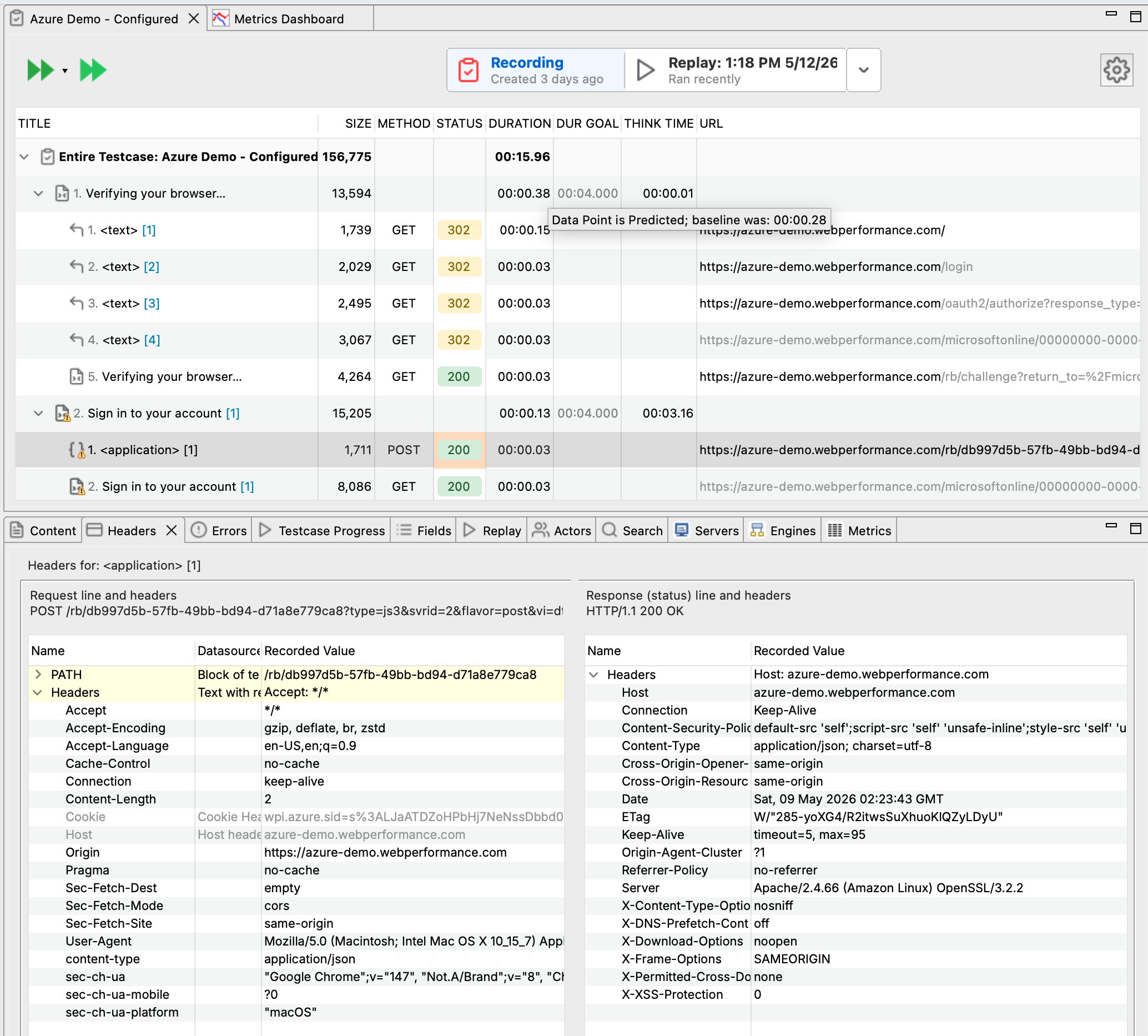
Step 4: Review Recorded API Calls
To inspect your recorded API calls:
- Select the transaction in the test case editor (left pane)
- Open the Headers View (bottom pane) to see HTTP headers
- Open the Content View to see request/response bodies
Filtering Unwanted Requests
Virtual browser recording captures all network communications. You may find Load Tester recorded requests other than those generated by your API client (browser extensions, analytics, etc.).
You can remove additional communications by: - Narrowing the domain filter in the recording configuration - Deleting unwanted transactions after recording - Using domain blocking to exclude analytics/tracking domains
Advanced: Manually Creating API Test Cases
For APIs without a browser-based client, you can manually create test cases by importing request/response files. This is useful for:
- Command-line tools or SDKs without browser access
- APIs captured via packet sniffing (Wireshark, tcpdump)
- Programmatically generated API calls
Process:
- Create request file - Plain text file with HTTP headers + body
- Create response file - Plain text file with HTTP headers + body
- Import as transaction - Right-click test case → Import → As New Web Page
- Select request and response files
- Configure session tracking (extract tokens, configure headers)
- Configure validation (status codes, response content)
Example request file (login-request.txt):
POST /api/v1/auth/login HTTP/1.1
Host: api.example.com
Content-Type: application/json
Content-Length: 52

{"username":"test@example.com","password":"secret"}
See the v6.0 Web Service Tutorial for detailed manual API test case creation.
Next Steps
- Configure OAuth authentication - Most REST APIs use OAuth 2.0
- Use datasets for API parameters - Test with varied data
- Run a load test - Measure API performance under load
- Analyze API performance - Understand throughput and latency
Related Topics: