Test Case Properties
The Testcase Properties dialog holds the advanced, per-test-case settings that don't belong on any single transaction: how many connections to open, performance goals, looping behavior, think times, virtual-user identity, and integrations. Most test cases never need any of it, but a few settings (especially Restart Options) unlock scenarios that are otherwise impossible to load test.
To open it: right-click a test case in the Navigator and choose Properties, or from the Test Case Editor use Edit → Properties (or right-click in the editor → Properties). The dialog header reads "Edit the advanced properties for this testcase."
The dialog has seven tabs: General, Performance Goals, Restart Options, Replays, Think Time Profile, dynaTrace, and User Identity. Some tabs and controls appear only for HTTP test cases, others only for browser test cases; those differences are noted below.
General
Read-only information about what the test case targets, plus low-level network tuning.
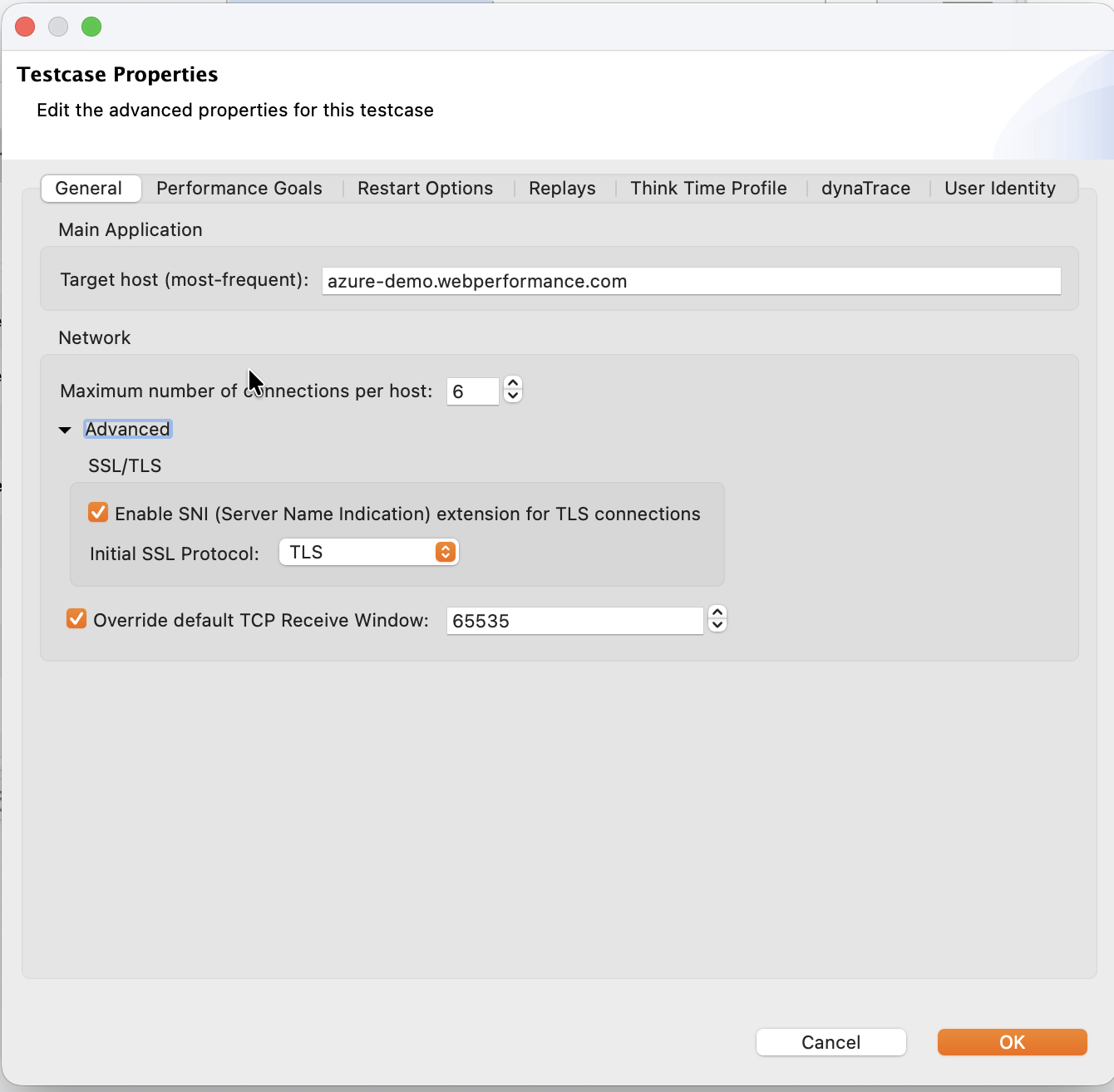
For an HTTP test case:
- Target host (most-frequent): the hostname this test case talks to most often, computed from its transactions. Read-only. Shows "(no transactions)" for an empty test case.
- Maximum number of connections per host: how many simultaneous TCP connections each virtual user opens to a single host. The default mirrors a real browser; raise or lower it only to match a specific client's behavior.
- Advanced (collapsed by default):
- Enable SNI (Server Name Indication) extension for TLS connections: send the hostname during the TLS handshake. Needed when a server hosts multiple certificates on one IP.
- Initial SSL Protocol: the TLS protocol version to offer first, chosen from the protocols your JVM supports.
- Override default TCP Receive Window: set a specific socket receive-buffer size instead of the operating-system default. Leave this off unless you are deliberately simulating constrained network conditions.
For a browser test case:
- Open a new browser session for each repeat: start each loop iteration in a fresh browser session rather than reusing the current one.
Performance Goals
Optional duration targets applied during load testing and result analysis, so a page or transaction that runs slower than your goal is flagged.
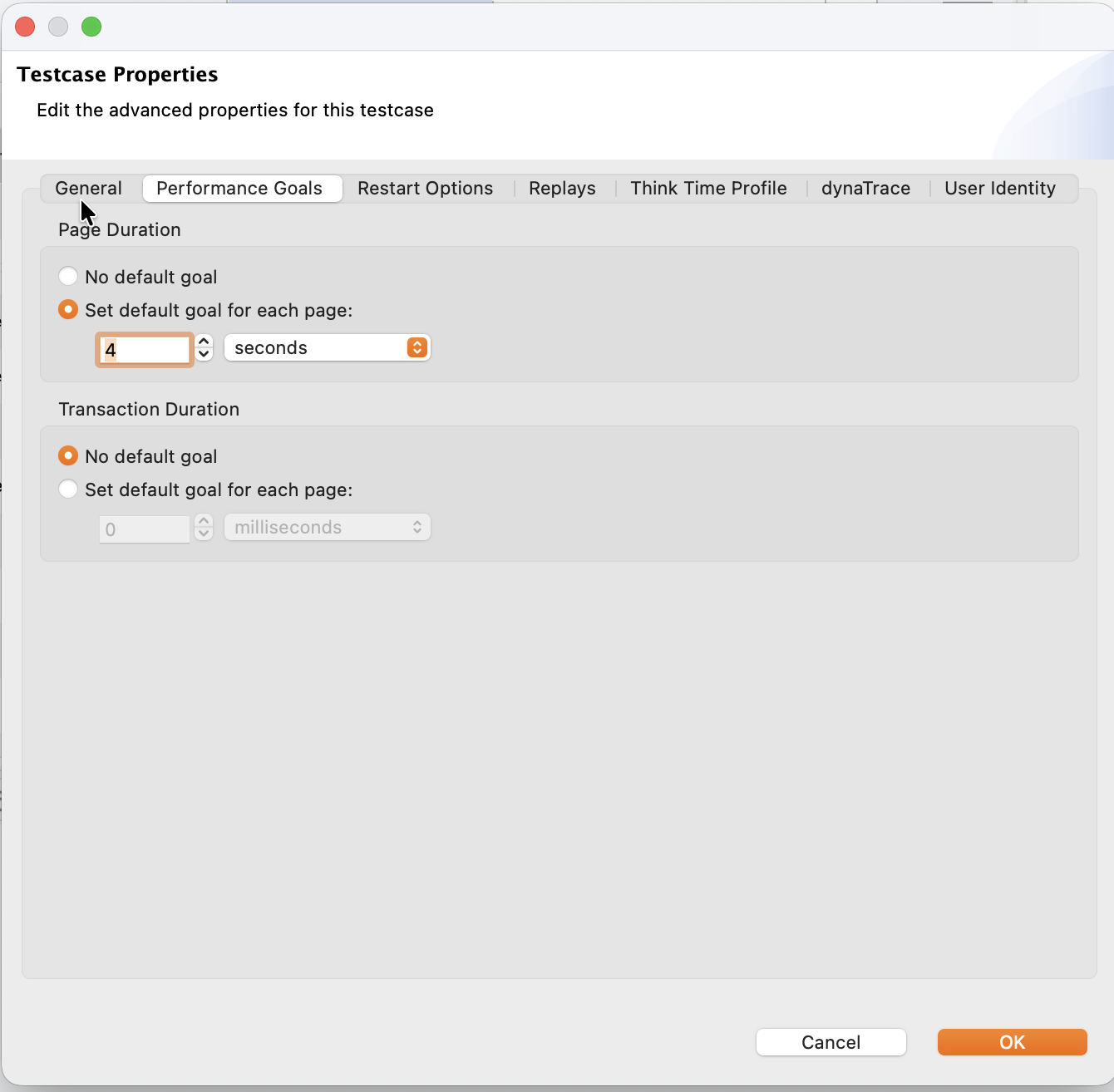
- Page Duration: choose No default goal, or Set default goal for each page and enter a duration. The goal applies to every page that doesn't have its own.
- Transaction Duration (HTTP test cases only): the same choice, applied per transaction.
These are defaults for the whole test case. Individual pages and transactions can still carry their own goals. For how goals show up in results, see Reports.
Restart Options
Despite the name, this tab is where you configure a loop inside a single test case. By default a virtual user runs the test case once, start to finish, per iteration. Restart Options lets you mark a span of the test case to repeat and decide when the repetition stops. There is only one loop per test case: you cannot nest loops or define several independent ones.
Two real scenarios make this worth the effort:
- Waiting room or queue. A site that admits only a few users at a time (think a sale on hot concert tickets) parks everyone else on a waiting-room page that polls until it's their turn. The virtual user needs to sit on that page, polling, until the server lets it through.
- Back-end processing. The user submits something for processing (a report, an order, a batch job) and can't continue until the server finishes. The virtual user polls a status page until processing completes.
In both cases the number of repetitions isn't fixed: it depends on a value the server returns. That is exactly what the User Variable exit condition (below) is for.
Defining the loop boundaries
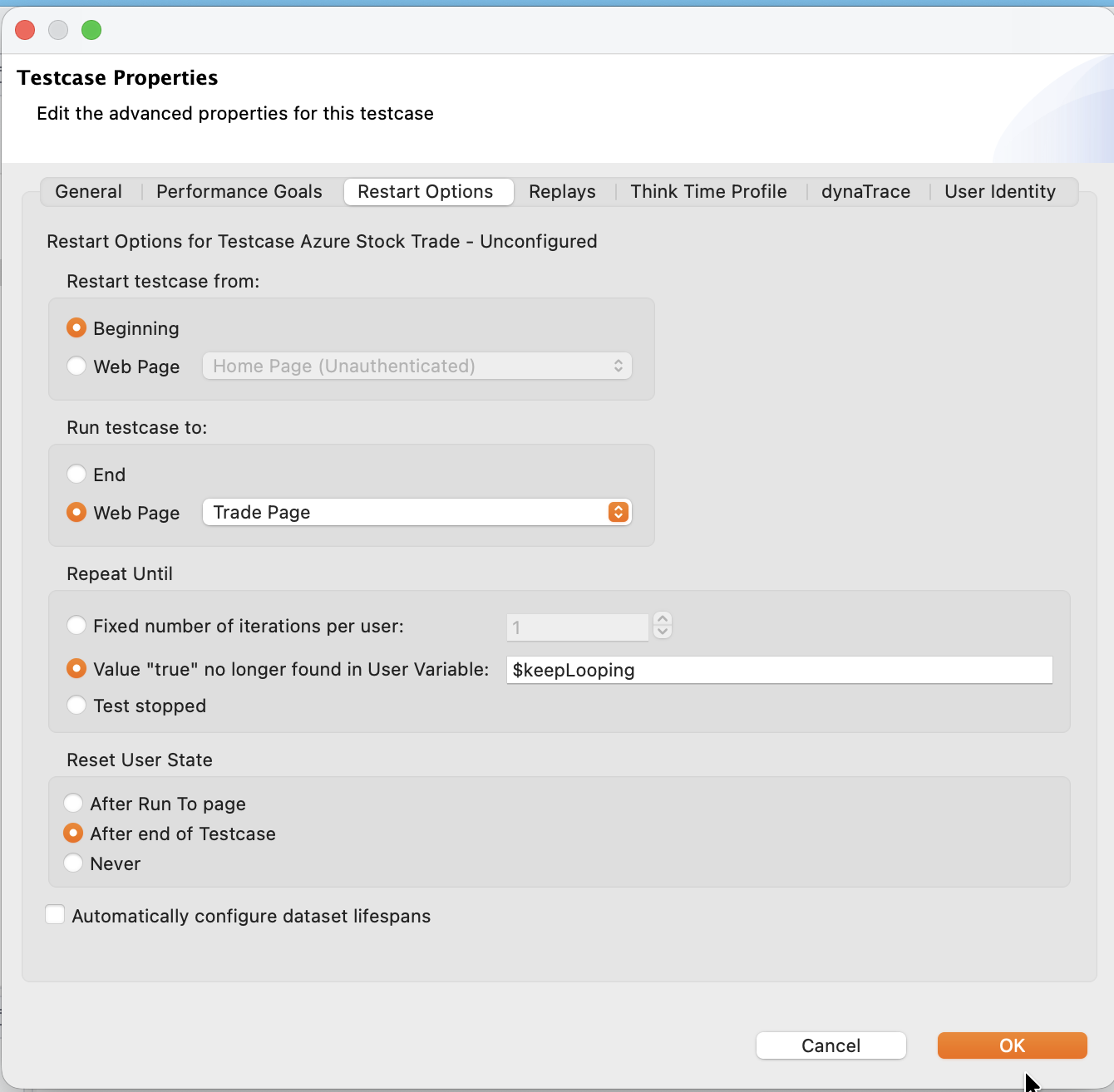
- Restart testcase from: Beginning (default) or a specific Web Page.
- Run testcase to: End (default) or a specific Web Page.
Together these bound the span that repeats. The restart page cannot come after the run-to page. The Repeat Until choices become active only once you've designated a restart page or a run-to page. With the defaults (Beginning to End) there is no marked span to repeat, so looping stays off.
Repeat Until
When the loop stops:
- Fixed number of iterations per user: repeat the span exactly this many times.
- Value "true" no longer found in User Variable: keep looping as long as the named variable holds the value
true, and stop the moment it doesn't. Pair this with an extractor that reads a status value from each response into the variable. This is the waiting-room and back-end-processing mechanism: the server decides when the loop ends. In the screenshot above, the loop continues while$keepLoopingstaystrue. - Test stopped: there is no per-user limit. The virtual user keeps repeating the span until the load test itself ends.
Reset User State
Whether cookies, session state, and user variables carry across loop iterations:
- After Run To page: reset at the end of each repeated span.
- After end of Testcase: reset when the whole test case finishes.
- Never: carry everything across iterations.
For a waiting-room poll you usually want Never, so the virtual user keeps the session that is holding its place in line.
Automatically configure dataset lifespans
Looping changes how quickly a virtual user consumes dataset rows. Check this box to let Load Tester adjust dataset lifespans to match the loop, so a user doesn't run out of data mid-iteration. See Datasets for the row-count math the loop affects.
Replays
Manages the recorded replays stored with the test case.
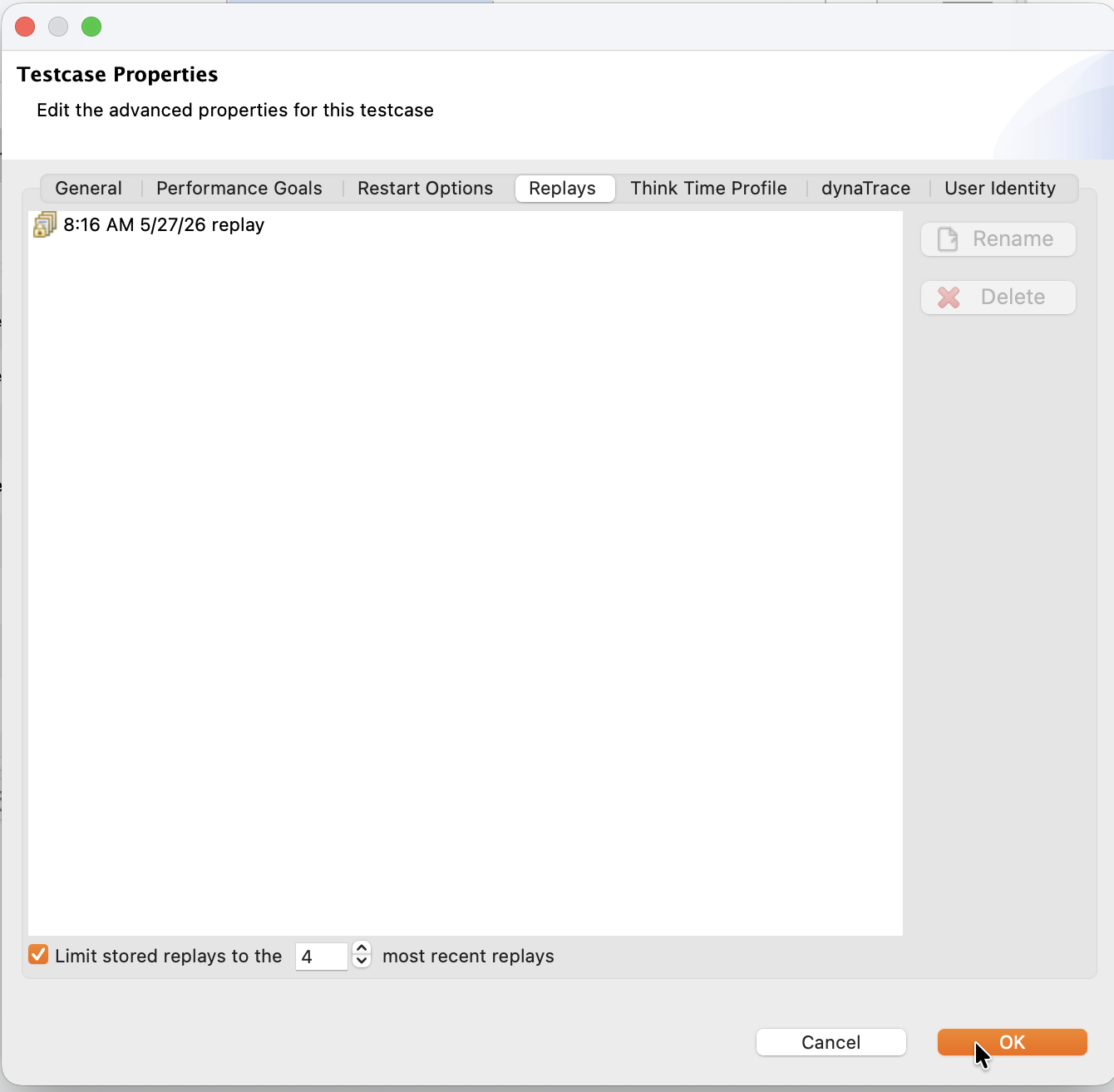
- The list shows each stored replay. Select one and click Rename, or select one or more and click Delete.
- Limit stored replays to the N most recent replays: cap how many replays are retained, so debugging runs don't accumulate indefinitely. Leave it unchecked to keep them all.
Think Time Profile
The think times (the pause a virtual user waits on each page before moving to the next), shown as a single-column CSV you can edit directly. HTTP test cases only.
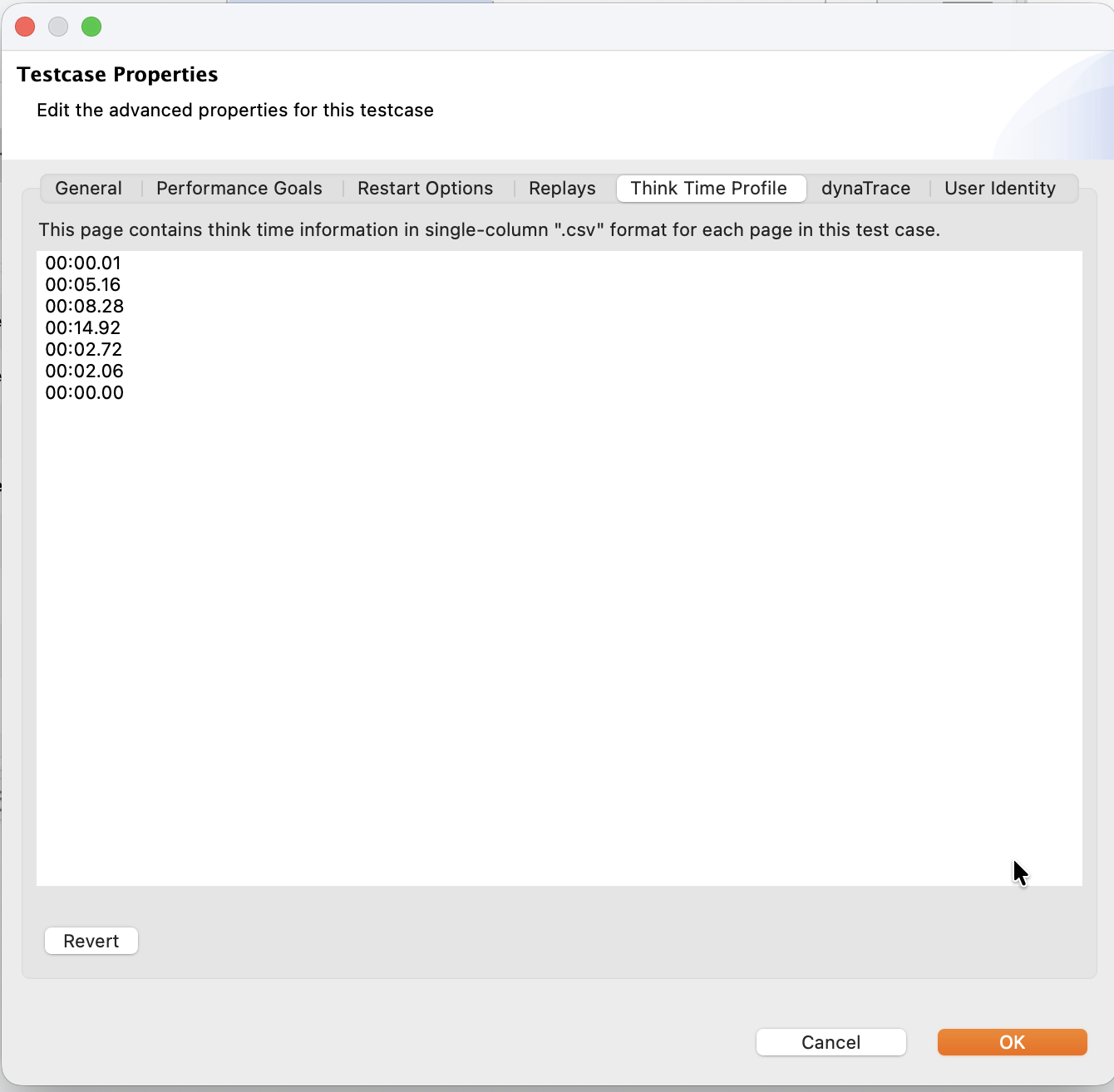
Each line is one page's delay, in minutes:seconds.hundredths format (for example, 00:05.16 is just over five seconds). Edit the values and click OK, or click Revert to discard your edits and reload the current values. For what think time is and why it matters, see the glossary.
dynaTrace
Enables per-virtual-user dynaTrace tracing so individual virtual users can be identified in dynaTrace dashboards. Requires a PRO license with the dynaTrace add-on; without it, enabling the checkbox prompts to upgrade and otherwise makes no change.
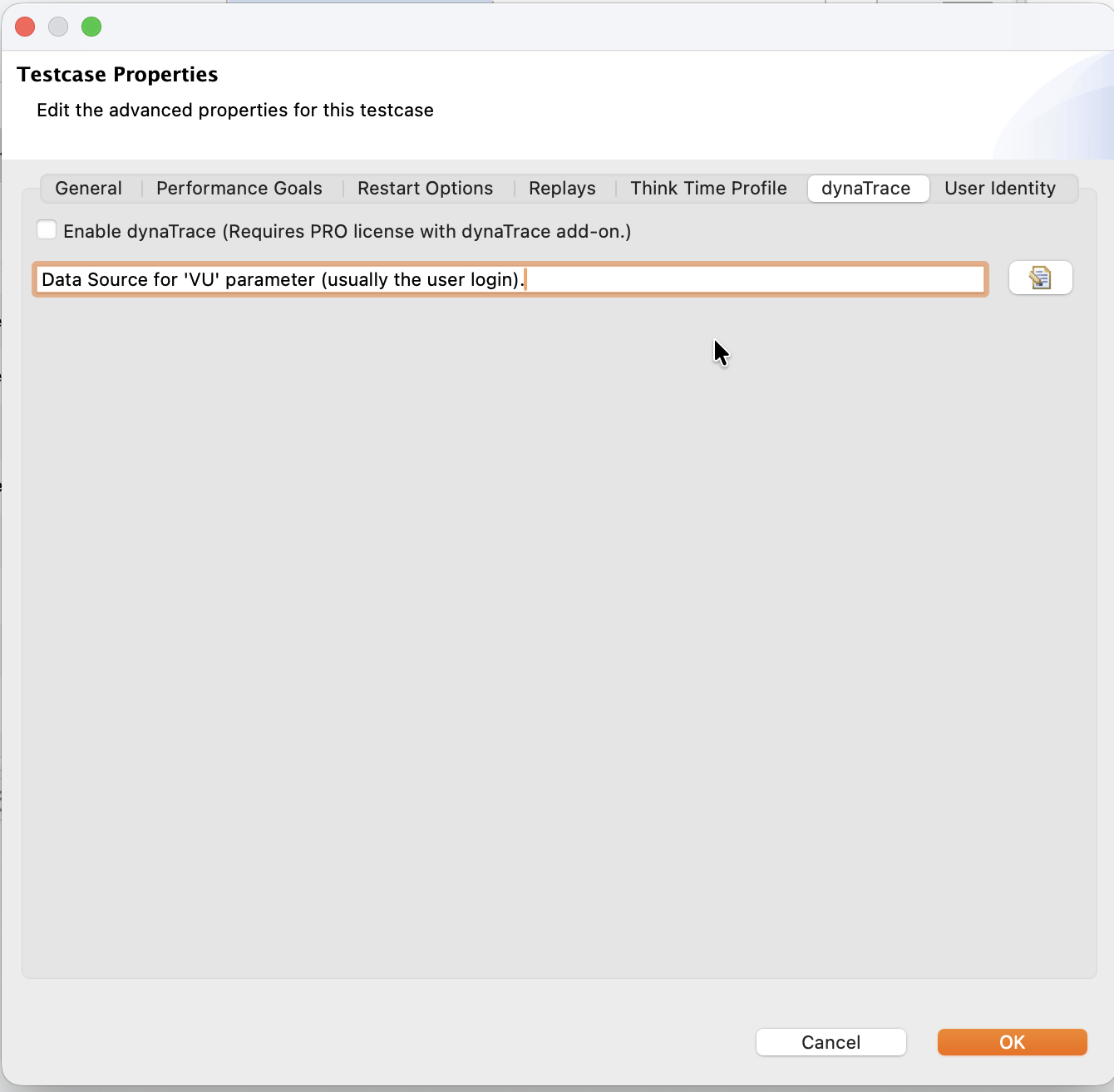
When enabled, you choose the data source for the "VU" parameter (usually the user's login identifier), and Load Tester injects the corresponding dynaTrace header into every transaction. For how this fits the larger monitoring picture, see Server Monitoring and the DynaTrace integration example.
User Identity
Obsolete tab
The User Identity tab is no longer used. It remains in the dialog for backward compatibility, but you should not configure identity here.
Configure per-user credentials instead through the authentication workflow and datasets, which is where modern login handling lives. See Basic and Form Authentication for the current approach, and Datasets for giving each virtual user a different login.