Basic ASM & Dynamic Fields
The first thing to do after recording a test case is run Application State Management (ASM) to configure dynamic fields. This guide walks you through running ASM, understanding what it does, and reading the results.
What Are Dynamic Fields?
Dynamic fields are values that change between sessions or requests:
- Session cookies:
JSESSIONID=a7b9c3d5e(different for each user) - CSRF tokens:
authenticity_token=x1y2z3(changes every request) - Hidden form fields:
__VIEWSTATE=long_encoded_string(contains page state) - Transaction IDs:
orderId=12345(unique per order) - OAuth tokens:
access_token=eyJhbG...(expires after time period)
The problem: When you record a test case, these values are captured from your session. Replay with those hardcoded values and the server rejects them. Your session expired. Your token is invalid.
The solution: ASM correlates dynamic fields by finding where values are set (extraction) and where they're used (assignment), then configuring the test case to use fresh values during replay.
How Correlation Works
Correlation has two parts: extraction and assignment.
Step 1: Extraction (Where Values Come From)
ASM scans previous responses in the test case to find where dynamic values are set:
Example: Server sends session cookie
ASM extracts: JSESSIONID → value a7b9c3d5e
Step 2: Assignment (Where Values Are Used)
ASM scans subsequent requests to find where extracted values are referenced:
Example: Browser sends session cookie back
ASM assigns: Use extracted JSESSIONID value in Cookie header
The Correlation
During recording:
1. Server sends: Set-Cookie: JSESSIONID=a7b9c3d5e
2. Browser sends: Cookie: JSESSIONID=a7b9c3d5e
3. (hardcoded value captured in recording)
After ASM correlation:
1. Server sends: Set-Cookie: JSESSIONID=x1y2z3 ← New value
2. Extract x1y2z3 from Set-Cookie header
3. Browser sends: Cookie: JSESSIONID=x1y2z3 ← Uses extracted value
Result: Test case works with any session ID the server assigns, not just the one from recording.
Correlation = Extract + Assign
Every correlated field has two parts: where it's extracted (source) and where it's assigned (destination). ASM configures both automatically.
Running ASM: Step-by-Step
Automatic: After Recording (Recommended)
- Stop recording → Load Tester opens Test Case Configuration Wizard
- Wizard runs ASM automatically → Progress bar appears
- ASM analyzes all transactions → Configures dynamic fields
- Wizard completes → "Finish" button enabled
- Click Finish → Test case is configured and ready
This is the easiest path: ASM runs automatically and you proceed directly to replay.
Manual: Run ASM Anytime
For first-time configuration of a test case, use the full Configure for Replay wizard (restricts hostnames, then runs ASM). For re-runs against an already-configured test case, you can skip straight to ASM:
- Right-click test case in Navigator view
- Select Configure → Application State...
- ASM Wizard appears
- Click Next → ASM analyzes transactions (30 seconds to 2 minutes)
- Analysis completes → Summary shows what was configured
- Click Finish → Field configuration applied
When to run ASM manually:
- You added or deleted transactions after initial ASM run
- Replay is failing and you suspect misconfigured fields
- You want to try different ASM settings
- Initial automatic ASM run was interrupted
If your changes might have introduced new third-party hostnames, run the full Configure for Replay wizard instead so you can re-check the hostname list.
Viewing ASM Results: Fields View
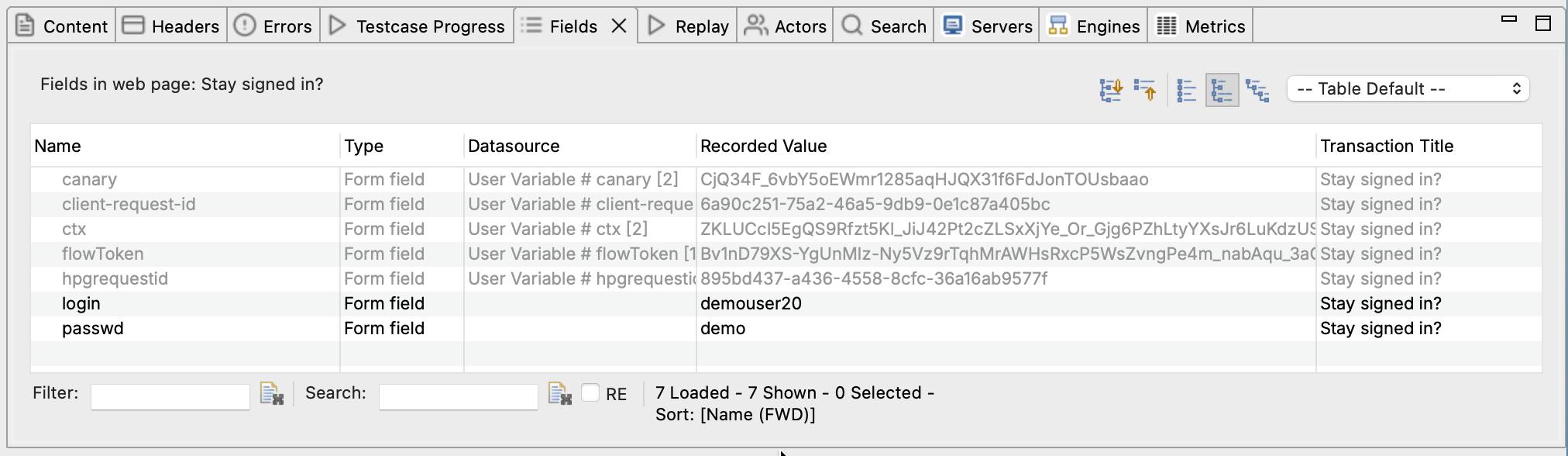
After ASM completes, open the Fields View to see what was configured.
To open Fields View: - Window → Show View → Fields - Or click Fields tab (usually at bottom with Headers, Errors)
Understanding Field Entries
Each row in the Fields View represents one dynamic field:
| Column | Meaning |
|---|---|
| Field Name | Variable name (e.g., sessionId, csrfToken, __VIEWSTATE) |
| Datasource | Where value comes from (e.g., Extractor[1], Server authentication header) |
| Value | Current value (from recording or extraction preview) |
| Background Color | Grey = Auto-configured by ASM, White = Not configured |
Common Datasources
What datasources mean:
| Datasource | Meaning | Example |
|---|---|---|
| Recorded | Use hardcoded value from recording (no correlation) | Static product IDs |
| Extractor[N] | Extracted from response using boundary extraction | Hidden form fields |
| Server authentication header | OAuth Bearer token from JSON response | OAuth access_token |
| Cookie: [name] | Value from Set-Cookie header | Session cookies |
| Dataset | Value from CSV file or database | User credentials |
Grey background fields: ASM configured these automatically. Safe to use as-is in most cases.
White background fields: Either static (correct hardcoded value) or ASM didn't detect as dynamic (may need manual configuration if replay fails).
Common Field Types
1. Session Cookies
What they are: Server assigns unique cookie to identify your session.
Example:
How ASM handles:
- Extracts: From Set-Cookie response header
- Assigns: To Cookie request header
- Datasource: Cookie: PHPSESSID
Replay behavior: Each virtual user gets their own session cookie from the server.
2. CSRF Tokens
What they are: Anti-forgery tokens preventing cross-site request attacks.
Example HTML:
How ASM handles:
- Extracts: From HTML <input> or JSON response
- Assigns: To form POST data or request header
- Datasource: Extractor[1] (boundary extraction)
Replay behavior: Fresh CSRF token extracted from each page before submitting forms.
3. OAuth Bearer Tokens
What they are: JWT tokens for API authentication.
Example JSON response:
How ASM handles:
- Extracts: From JSON access_token field (OAuth detection rules)
- Assigns: To Authorization: Bearer <token> header
- Datasource: Server authentication header
Replay behavior: Token extracted from login response, used in all subsequent API calls.
See OAuth & Bearer Tokens for details.
4. Hidden Form Fields (ASP.NET)
What they are: Page state encoded in hidden fields like __VIEWSTATE.
Example HTML:
How ASM handles:
- Extracts: From HTML hidden input (ASP.NET rules recognize __VIEWSTATE)
- Assigns: To form POST data
- Datasource: Extractor[2] (boundary extraction)
Replay behavior: Fresh __VIEWSTATE extracted from each page before posting forms.
Step-by-Step: Verify ASM Configuration
After ASM runs, verify it configured fields correctly:
1. Check Fields View for Grey Background
- Open Fields View
- Look for grey background on field rows
- Grey = ASM configured automatically ✅
If many fields show white background, ASM may have missed dynamic fields. Check if replay fails.
2. Verify Common Fields Are Present
Check for these common fields (most web applications have them):
- ✅ Session cookie (JSESSIONID, PHPSESSID, ASP.NET_SessionId)
- ✅ CSRF token (if site uses forms)
- ✅ OAuth Bearer token (if site uses OAuth/API authentication)
If critical fields are missing, you may need manual configuration.
3. Check Datasource Types
Expected datasources for common fields:
- Session cookies →
Cookie: [name] - CSRF tokens →
Extractor[N] - OAuth tokens →
Server authentication header - Hidden fields →
Extractor[N]
If datasource says Recorded for a field that should be dynamic, ASM may have misconfigured it.
Verify Field Configuration
Editing Field Configuration
Sometimes ASM gets it wrong. When it does, you override the configuration.
Changing a Field's Datasource
- Right-click the field in Fields View
- Select Edit
- Change Datasource dropdown:
- Recorded: Use hardcoded value (disable correlation)
- Extractor[N]: Use boundary extraction
- Server authentication header: Use OAuth Bearer token
- Dataset: Use value from CSV file
- Click OK
When to Override ASM
Change to Recorded when: - ASM correlated a static field that shouldn't change - Field value is the same for all users (e.g., product ID, category) - Replay works better with hardcoded value
Change to custom extraction when: - ASM missed a dynamic field - Default extractor doesn't capture the right value - You need to extract from different location
See Advanced Field Assignments for complex configuration.
Common ASM Scenarios
Scenario 1: ASM Configured Everything, Replay Works
What you see: Fields View shows grey background on session cookies, CSRF tokens. Replay succeeds with no errors.
What this means: ASM correctly configured all dynamic fields. ✅
Next steps: 1. Run a load test to verify it works under load 2. Configure datasets if you need multiple users 3. Move to next test case
This is the ideal outcome for most web applications.
Scenario 2: Replay Fails with 401 Unauthorized
What you see: Replay reaches login, then fails with 401 errors on authenticated pages.
What this means: Session cookie or OAuth token not correlated correctly.
Troubleshooting steps:
- Check Fields View for session cookie or Bearer token
- Verify datasource is
Cookie: [name]orServer authentication header - Check if login response actually sets cookie/token (Headers View)
If field is missing: You may need to manually configure it or re-run ASM.
Authentication Troubleshooting
Scenario 3: Replay Fails with 404 Not Found
What you see: Replay fails on URL like /api/order/12345 with 404 error.
What this means: Transaction ID in URL path wasn't correlated (ASM doesn't handle URL path variables by default).
Troubleshooting steps:
- Identify the dynamic part (e.g.,
12345changes every session) - Find where value is set (previous API response?)
- Manually configure extraction and URL replacement
See Dynamic Named Fields for URL path variables.
URL Path Variable Help
Scenario 4: Too Many Fields Configured
What you see: Fields View has dozens of grey-background fields, many with names like timestamp, random, userId.
What this means: ASM may have over-configured fields that don't need correlation.
Troubleshooting steps:
- Run replay first; it may still work fine
- If replay fails, identify which fields are causing problems
- Change datasource to Recorded for fields that should be static
See Auto-Ignore & Equivalent Fields for controlling what ASM configures.
Troubleshooting ASM
Problem: ASM Finds No Dynamic Fields
Symptoms: Fields View is empty after ASM runs, or only shows white-background static fields.
Possible causes: - Site uses only static content (rare) - ASM detection rules don't match your site's patterns - Dynamic fields use custom encoding ASM doesn't recognize
Solution:
- Run replay anyway; some sites truly have no dynamic fields
- If replay fails, manually configure missed fields
- Ask AI to analyze your test case for hidden dynamic fields
Find Dynamic Fields
Problem: ASM Takes Very Long to Run
Symptoms: ASM wizard progress bar stays at "Analyzing..." for 5+ minutes.
Possible causes: - Very large test case (100+ pages, 1000+ transactions) - Complex detection rules taking time - AI analysis running on difficult patterns
Solution:
- Wait for it to complete; don't cancel unless stuck >10 minutes
- If it freezes, cancel and re-run ASM
- If it consistently hangs, try recording a smaller test case
Problem: Can't Edit Field Configuration
Symptoms: Right-click → Edit is greyed out in Fields View.
Possible causes: - Field is locked (rare) - Test case is currently running - Fields View not showing editable view
Solution:
- Stop any running replay/load test
- Select the test case in Navigator
- Right-click field again → Edit should be enabled
Best Practices
1. Always Review Fields View After ASM
Spend 2 minutes reviewing what ASM configured. Look for:
- ✅ Session cookies configured
- ✅ CSRF tokens configured
- ✅ OAuth Bearer tokens configured (if applicable)
- ❌ Suspiciously many fields configured (check for over-correlation)
2. Run Replay Immediately After ASM
Don't configure datasets or make other changes before your first replay. Run the replay to verify ASM's field configuration works before you touch anything else.
3. Use AI for Complex Field Configuration
If you're not sure why a field was configured a certain way, ask the AI. It can explain the datasource and suggest fixes.
4. Don't Manually Configure Fields Before ASM
Let ASM run first. If it misses fields, then configure manually. Starting with manual configuration wastes time on fields ASM would have handled automatically.
5. Re-run ASM If You Edit the Test Case
If you add/delete transactions, re-run ASM. Old field configuration may reference transactions that no longer exist.
Next Steps
- Run a replay - Verify field configuration works
- Advanced field assignments - Multi-part fields, templates, conditional logic
- Debug replay failures - Fix correlation errors
- Configure datasets - Test with multiple users
Related Topics: