Repository Management
Your Load Tester work is stored in a repository: the .wpt project file that contains your test cases, datasets, load configurations, and load test results. Over time, as you record new test cases and run load tests, the repository grows. Left unchecked, a large repository consumes excessive memory and slows down the application.
This guide shows you how to use the Repository Cleanup Wizard to remove old data, archive results, and keep your repository from becoming the bottleneck.
What's Stored in a Repository
A .wpt file (repository) contains everything you've created in Load Tester:
| Resource Type | Description | Impact on Size |
|---|---|---|
| Test Cases | Recorded HTTP transactions, URLs, and captured content | High - recorded content can be large |
| Datasets | CSV data files for parameterization | Medium - depends on row count |
| Load Configurations | Load profiles, user ramps, duration settings | Low - mostly metadata |
| Load Test Results | Metrics, logs, response times from completed tests | Very High - grows with every test |
| Replay Results | Single-user replay validation results | Medium - accumulates over time |
Load test results are by far the biggest contributor to repository bloat. A single 1-hour load test can generate hundreds of megabytes of metric data.
When to Clean Up Your Repository
You should run the Repository Cleanup Wizard when:
- Load Tester feels slow - Large repositories consume more memory
- Disk space is limited - Old results can fill your drive
- You're archiving a project - Remove unnecessary data before long-term storage
- Before sharing - Clean up internal test data before sending .wpt to others
Best practice: Run cleanup after completing major test milestones or before archiving projects.
Repository Cleanup Wizard
The Repository Cleanup Wizard guides you through removing old data while backing up everything first (in case you accidentally delete something important).
Step 1: Launch the Wizard
- Right-click on your repository in the Navigator View (left panel)
- Select: Tools → Cleanup
The wizard opens and guides you through the cleanup process.
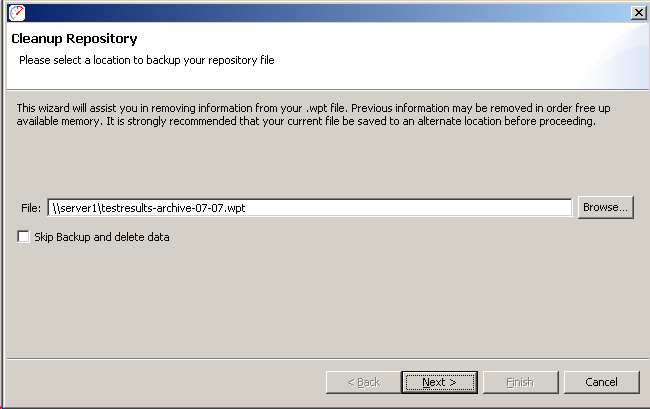
Step 2: Choose Backup Location
First, the wizard backs up your existing repository. This is strongly recommended because it's easy to accidentally remove something you need later.
- Browse to select a backup location (external drive or network location recommended)
- Name your backup (e.g.,
MyProject-backup-2026-02-11.wpt) - Click: Next
Tip: Use dated backup names so you know which version is which (ProjectName-2026-02-11.wpt).
Step 3: Select What to Remove
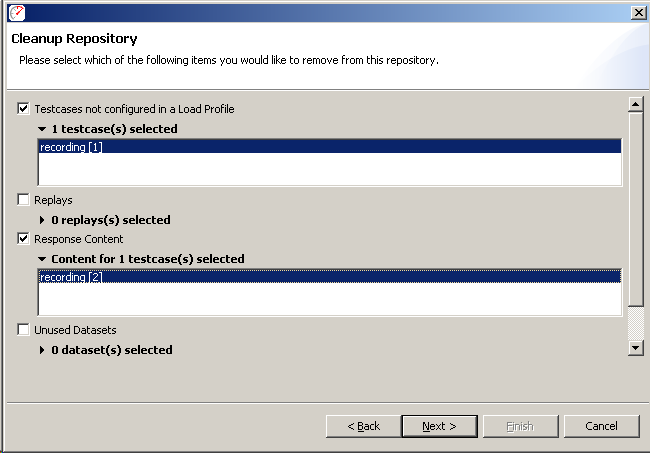
The wizard presents several cleanup options. Choose what to remove based on your needs:
Test Cases Not Configured in a Load Profile
What it removes: Test cases that aren't part of any load configuration (standalone replays, experimental recordings).
When to remove: - ✅ You recorded multiple versions of a test case and only kept the final one - ✅ You have exploratory recordings you no longer need
When to keep: - ❌ You're still iterating on test cases - ❌ Test cases are used for single-user replay validation (not load tests)
Replays
What it removes: Single-user replay validation results (not load test results; those are separate).
When to remove: - ✅ You've already validated test cases and don't need replay history - ✅ Replay results are from old iterations of test cases
When to keep: - ❌ You're debugging correlation issues and need to compare replays - ❌ Replays document test case evolution
Response Content
What it removes: The captured HTTP response bodies from recording (HTML, JSON, images, etc.).
When to remove: - ✅ Test cases are fully configured and you don't need to view responses anymore - ✅ You're archiving finalized test cases
When to keep: - ❌ You're still configuring ASM (need response content for correlation) - ❌ You use Content View to inspect responses - ❌ You need to create new extractors or validation rules
⚠️ Warning: Removing response content disables: - Content View (can't inspect response bodies) - ASM auto-correlation (can't detect dynamic values) - Extractor creation (can't define new extractors)
Only remove response content from test cases that are completely configured.
Unused Datasets
What it removes: CSV datasets that are no longer referenced by any remaining test cases.
When to remove: - ✅ Always safe to remove. If no test case uses it, you don't need it
Load Test Results
What it removes: Results from previous load tests (metrics, logs, response times, server monitoring data).
When to remove: - ✅ You've analyzed results and exported reports you need - ✅ Old test results are no longer relevant (outdated infrastructure, old application versions)
When to keep: - ❌ You need to compare performance across test runs - ❌ Results document baseline performance or historical trends
Tip: Before removing load test results, export key reports or screenshots for documentation.
Step 4: Confirm and Clean Up
- Review your selections - The wizard shows what will be removed
- Click: Finish
- Wait for cleanup - The wizard backs up first, then removes selected data
- Verify success - Check that your repository is smaller and still contains what you need
How Much Space Will I Save?
Typical cleanup results:
| What You Remove | Typical Space Savings |
|---|---|
| Load test results (10 tests) | 1-5 GB |
| Response content (50 test cases) | 100-500 MB |
| Replay results (100 replays) | 50-200 MB |
| Unused datasets and test cases | 10-50 MB |
Load test results are almost always the biggest space saver.
Best Practices
1. Back Up Before Cleanup (Always)
The wizard's backup step exists for a reason. Always create a backup before removing data. It takes seconds. Recreating accidentally deleted load test results takes hours you'll never get back.
2. Clean Up Regularly
Don't wait until your repository is huge. Clean up after major milestones:
- ✅ After completing a load test campaign
- ✅ Before archiving a project
- ✅ Monthly for active projects
3. Export Reports Before Removing Results
Load test results contain detailed metrics that cannot be recreated once deleted. Before removing them:
- Export key reports (HTML, PDF, CSV)
- Take screenshots of important charts
- Document findings in project documentation
Once results are removed, you can't regenerate reports.
4. Keep Response Content Until Test Cases Are Finalized
Response content is needed for: - ASM auto-correlation - Creating extractors - Validation rule configuration - Content View inspection
Only remove response content from test cases that are completely configured and won't need further editing.
5. Archive Old Projects to External Storage
For completed projects you might need later:
- Clean up the repository (remove temporary data)
- Back up to external storage (network drive, external disk, cloud storage)
- Remove from local disk if space is limited
This keeps local storage clean while preserving historical projects.
Troubleshooting
Cleanup Wizard Not Appearing
Symptom: Right-click on repository → Tools menu doesn't show "Cleanup" option.
Possible causes: 1. Repository not open - Only open repositories show cleanup option 2. Read-only repository - Cleanup requires write access to .wpt file
Solution: Ensure repository is open and the .wpt file is writable (not read-only).
Backup Fails During Cleanup
Symptom: Wizard shows error when creating backup.
Possible causes: 1. Insufficient disk space at backup location 2. Network drive disconnected (if backing up to network) 3. Permission issues on backup destination
Solution: Choose a different backup location with sufficient space and write permissions.
Repository Still Large After Cleanup
Symptom: Cleaned up load test results but .wpt file size didn't decrease much.
Likely cause: Response content is still present (it's often larger than load test results).
Solution: If test cases are finalized, run cleanup again and remove response content.
Can't View Test Case Content After Cleanup
Symptom: Content View shows "Content not available" after cleanup.
Cause: You removed response content.
Solution: - If you need content back: Restore from backup created during cleanup - If test cases are finalized: This is expected; response content was intentionally removed
Related Topics
- Workspace Management - Managing Load Tester installation and workspace
- Import/Export - Sharing test cases and configurations
- Getting Support - Contact support for repository issues
Quick Reference
Launch Cleanup Wizard: 1. Right-click repository in Navigator View 2. Select Tools → Cleanup
Safe to Remove: - ✅ Load test results (after exporting reports) - ✅ Unused datasets - ✅ Old replay results - ✅ Test cases not in load profiles (if no longer needed)
Remove with Caution: - ⚠️ Response content (only if test cases are fully configured)
Always: - ✅ Create backup before cleanup - ✅ Export reports before removing load test results