Mass-Editing Fields in the Fields View
Most field edits change one transaction at a time. That's fine for a single URL, but recordings are full of values that repeat across dozens of requests: the same hostname on every transaction, the same hidden form field submitted on every page, the same query parameter sent with every API call. Editing those one by one is slow and error-prone. The Fields View lets you select many fields at once and apply a single change to all of them.
The Fields View lists every field in the test case (form fields, query parameters, hidden fields, file uploads, and the host and port of each request) in one flat table, regardless of which transaction they belong to. Two tools make a field that appears in many rows easy to round up: the Filter box at the bottom left, and the table-layout dropdown at the top right.
Open it from Window → Show View → Fields View if it isn't already docked with the Headers tab.
Edit every instance of a field
Suppose a token named flowToken is submitted on a dozen different requests and you want them all to use the same constant, variable, or dataset value.
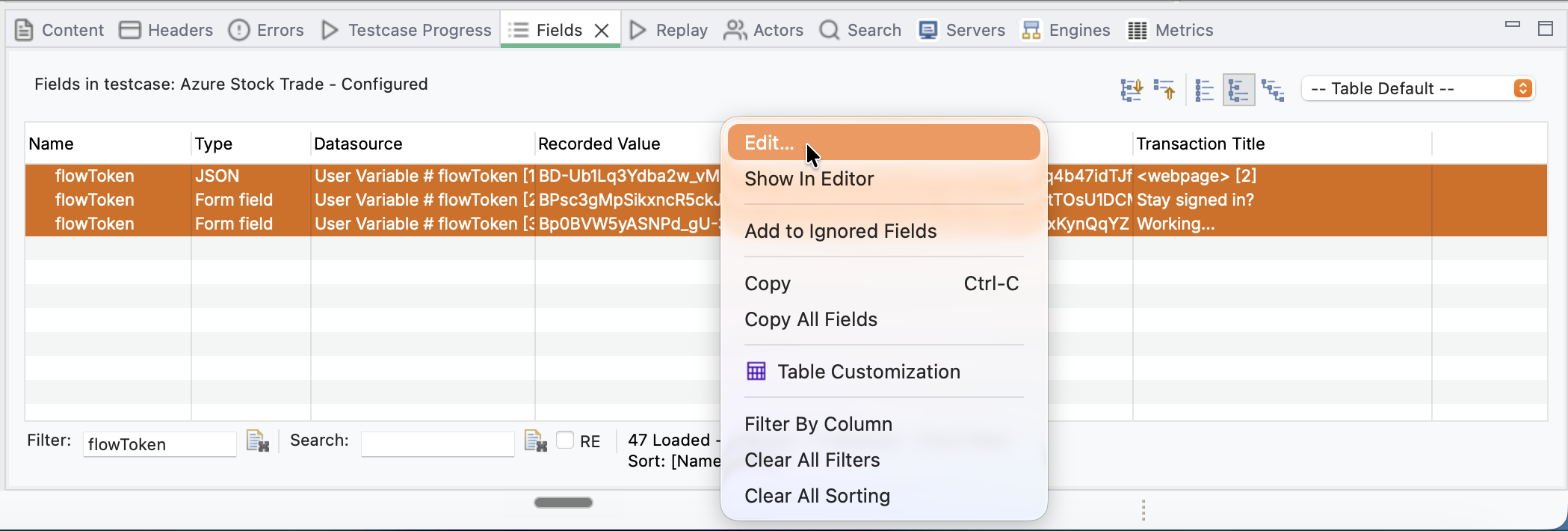
- Type the field name into the Filter box at the bottom left of the Fields View. The table narrows to just the matching rows, so you see every instance of
flowTokenand nothing else. - Select the rows you want to change. Click the first, then Shift-click the last for a range, or Ctrl-click (Cmd-click on macOS) to pick individual rows. Ctrl+A (Cmd+A) selects them all.
- Right-click the selection and choose Edit...
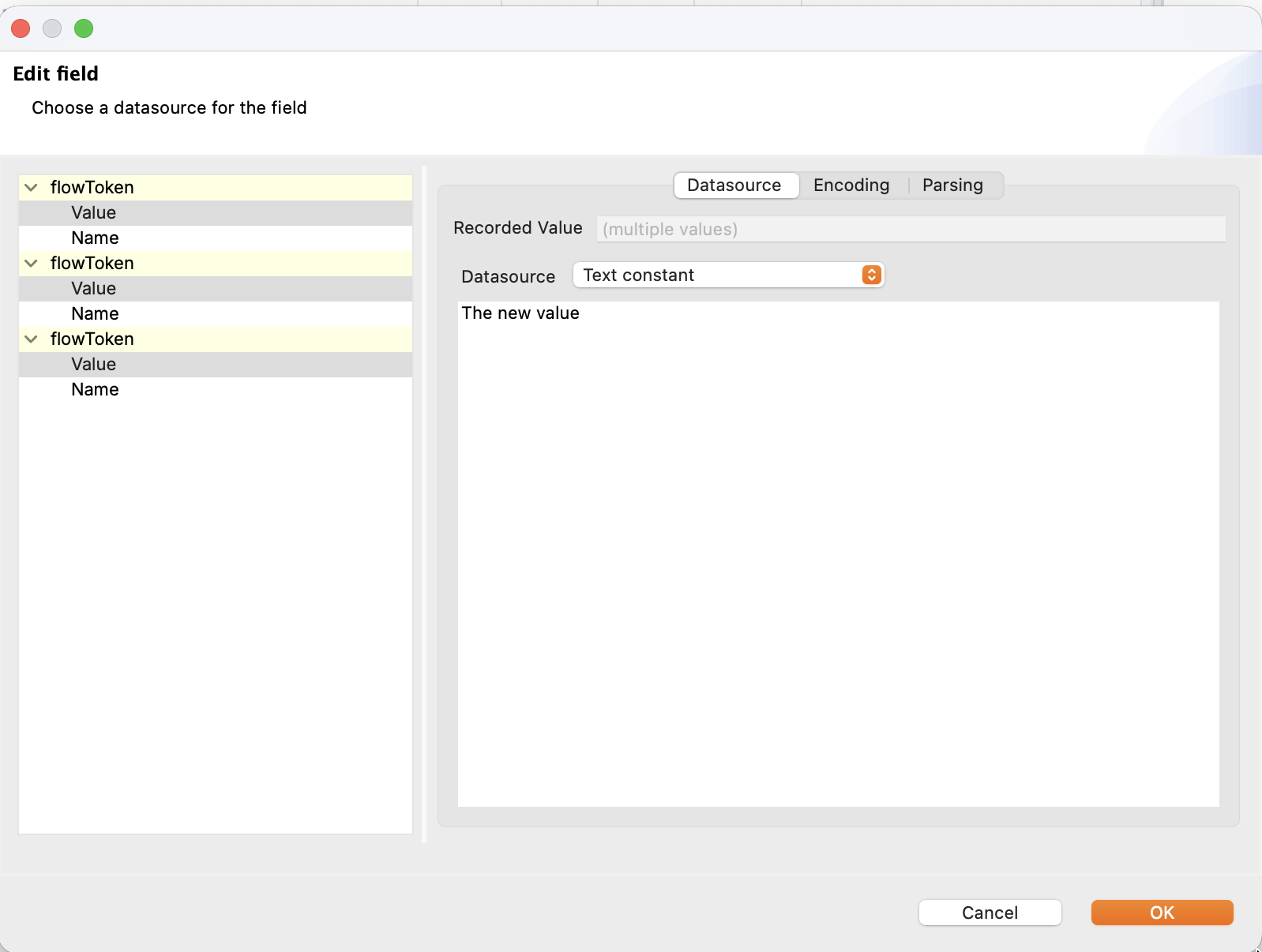
The Edit field dialog opens once for the whole selection. When the selected fields don't all share the same recorded value, the Recorded Value box reads (multiple values) to tell you the selection is mixed. Pick a Datasource (a text constant, a user variable, a dataset column, and so on) and enter the value or source. Clicking OK applies that one choice to every field you selected.
Retarget every hostname to a different server
The same gesture solves a common chore: pointing a recording at a different environment. Every recorded request carries a host and port, and the Fields View can show them all together through a saved table layout.
-
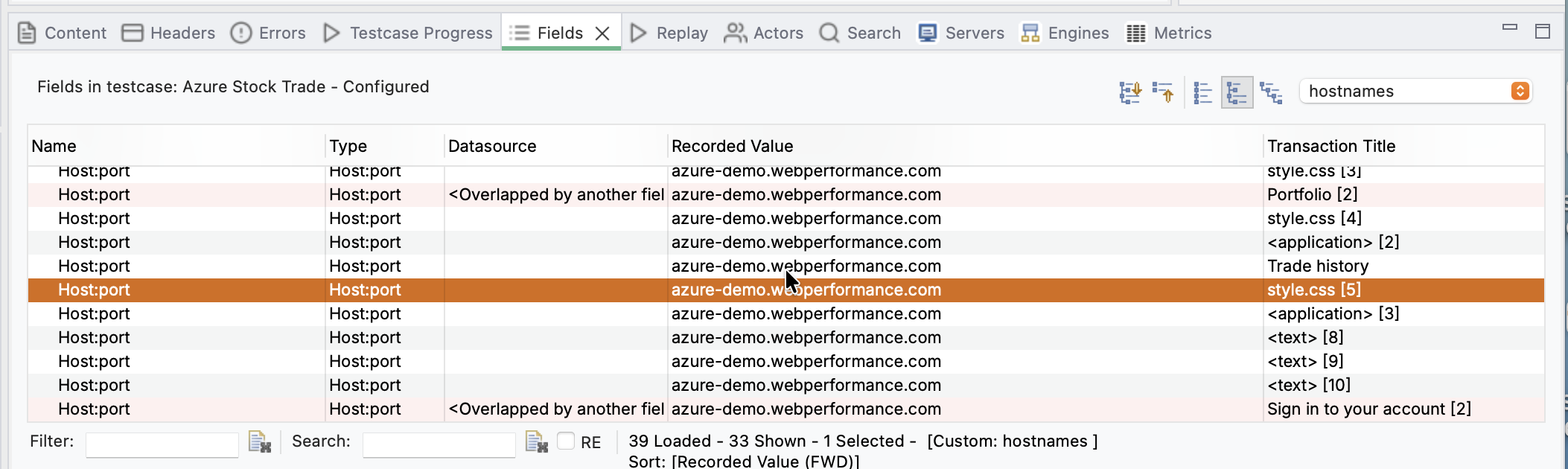
Open the table-layout dropdown at the top right of the Fields View (it normally reads Table Default) and choose hostnames. The table switches to show the Host:port field of every transaction, with the recorded hostname in the Recorded Value column.
-
Select all the Host:port rows (Ctrl+A, or Cmd+A on macOS).
- Right-click and choose Edit...
-
In the Edit field dialog, set Datasource to Text constant and type the new hostname. Here every transaction recorded against
azure-demo.webperformance.comis retargeted todemo.newwebsite.comin a single step.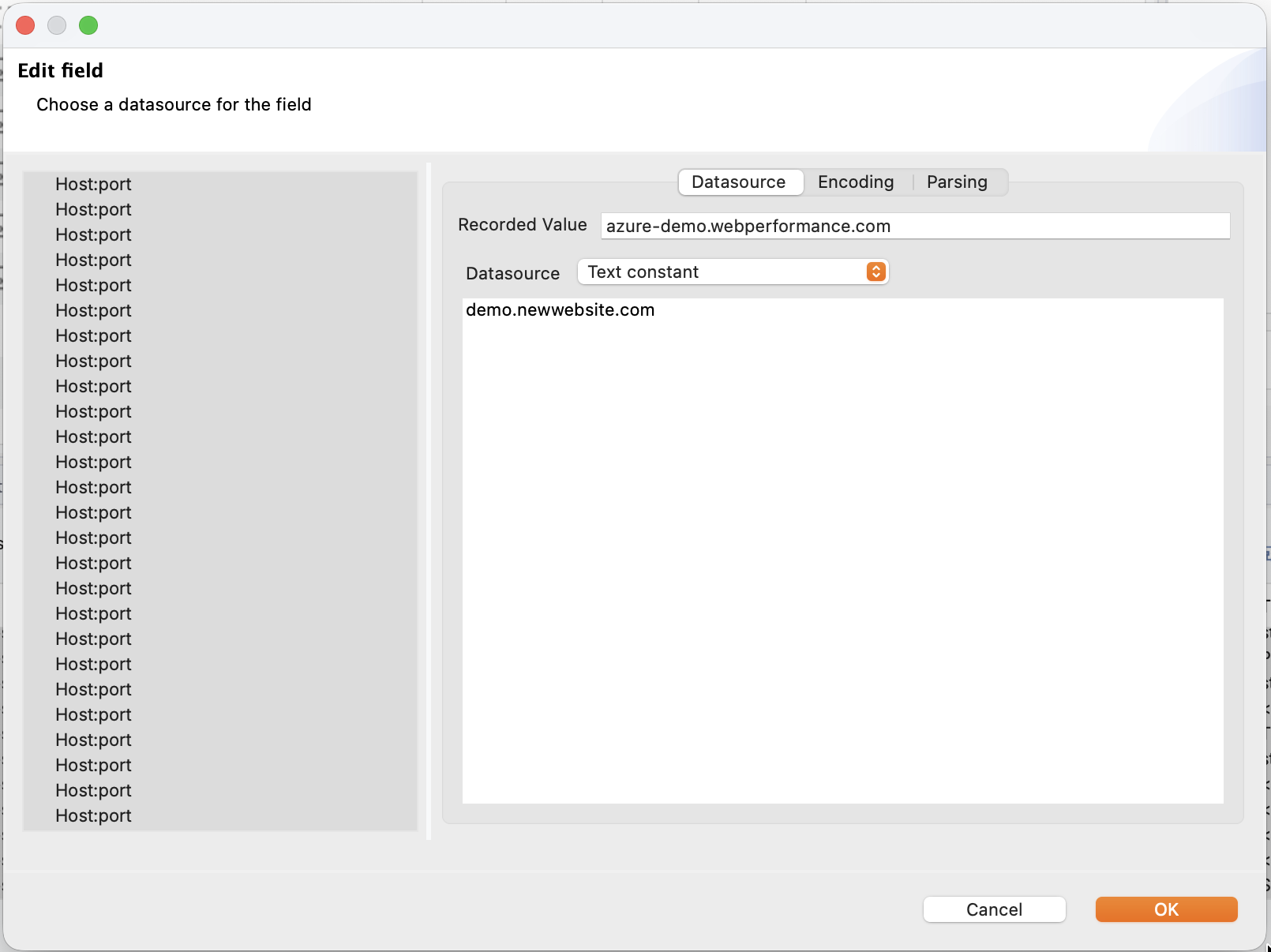
-
Click OK. Every transaction now targets the new server.
This is the per-test-case equivalent of the global Hostname Resolution preference, and it's the right choice when you want to retarget one test case without affecting the rest of your workspace.
The filter and the hostnames layout combine
Anything you can filter or lay out into a column, you can mass-edit. Filter to a parameter name to change one value everywhere, switch to the hostnames layout to retarget a whole test case, or sort by Recorded Value to find and fix every field that still holds a stale recorded token.