Extractors & Boundary Extraction
ASM's automatic field detection configures most dynamic fields for you: session cookies, CSRF tokens, OAuth Bearer tokens. But occasionally ASM misses a field. Worse, it sometimes configures fields that shouldn't be dynamic, causing replay failures.
Extractors are the mechanism ASM uses to grab values from server responses. Understanding how they work lets you create custom ones when ASM misses fields and disable unneeded ones when ASM over-configures.
This guide covers when to create custom extractors, how to configure them step by step, and how to fix common extractor problems.
What Extractors Do
The Extraction-Assignment Flow
Every dynamic field has two parts:
- Extraction: Grab value from server response
- Assignment: Use extracted value in subsequent request
Example flow:
1. Server response: Set-Cookie: sessionId=abc123
   → Extractor captures "abc123"
   → Stored in user state variable "sessionId"

2. Next request: Cookie: sessionId=abc123
   → Field "sessionId" reads from user state variable
   → Sends fresh extracted value
Without extractor: Field uses hardcoded value from recording → Replay fails (session expired).
With extractor: Field uses fresh value from server → Replay succeeds.
Extractors vs. Field Configuration
Extractor = How to grab the value from response
Field configuration = Where to use the extracted value in request
Both must work together:
- ✅ Extractor configured + Field configured = Dynamic field works
- ❌ Extractor configured + Field NOT configured = Value extracted but never used
- ❌ Extractor NOT configured + Field configured = Field has no fresh value, uses hardcoded
When ASM Creates Extractors Automatically
Built-In Extraction Rules
ASM's 300+ detection rules create extractors automatically for common patterns:
Automatically extracted:
- ✅ Session cookies: From
Set-Cookieheaders - ✅ CSRF tokens: From HTML hidden
<input>fields - ✅ OAuth Bearer tokens: From JSON
access_tokenfields - ✅ ASP.NET ViewState: From
__VIEWSTATEhidden field - ✅ Standard form fields: Hidden inputs with predictable patterns
Check Actors View after ASM runs:
- Select page in Navigator
- Click Actors tab at bottom
- Choose Extractors from dropdown
- See extractors ASM created automatically
Grey-background extractors = ASM auto-configured ✅
No extractors listed = ASM didn't detect dynamic values on this page
When Manual Extractors Are Needed
Create custom extractor when:
- ASM missed a dynamic field: Field shows white background in Fields View, replay fails
- Application uses non-standard patterns: Custom JavaScript assignment, unusual formats
- Value embedded in complex HTML/JSON: ASM's boundary extraction can't find it
- Multiple related values: Need to extract field name AND value (dynamic field names)
Symptoms requiring custom extractor:
- ✅ Replay fails with errors about missing/invalid field values
- ✅ Fields View shows field as "Recorded" (not grey background)
- ✅ Manual inspection shows value in response but ASM didn't extract it
- ✅ Extractor error messages during replay
Ask the AI
Extractor Types
1. String Delimited Extractor (Boundary Extraction)
Use when: Value appears between predictable prefix and suffix strings.
How it works: Specify text before value (prefix) and text after value (suffix). Extractor captures everything between them.
Example HTML:
Configuration:
- Prefix:
name="transactionId" value=" - Suffix:
" - Extracted value:
12345
This is the most common extractor type. Simple and reliable when prefix/suffix are predictable.
2. Regular Expression Extractor
Use when: Boundary extraction isn't precise enough, or pattern is complex.
How it works: Regular expression with capture groups. Each (...) captures a value.
Example JavaScript:
Configuration:
- Pattern:
send_back\('Accounts','([0-9a-f-]+)'\) - Captured value:
c8f7a0b2-4e1d-8a9c-5f3e-2b1a9c8d7e6f(capture group 1)
When to use regex over boundary:
- ✅ Prefix/suffix too vague (would match multiple values)
- ✅ Need pattern matching (e.g., "any hex string")
- ✅ Value format needs validation
- ✅ Multiple values in same pattern (multi-variable extractor)
3. Multi-Variable Extractor
Use when: Need to extract multiple values from single pattern (e.g., field name AND value).
How it works: Regex with multiple capture groups. Each group extracts to separate variable.
Example HTML:
Problem: Field name is dynamic (Item45 vs Item56). Need to extract both name and value.
Configuration:
- Pattern:
(Item\d+)=(\w+)(two capture groups) - Variable 1:
fieldName(capturesItem45) - Variable 2:
fieldValue(capturesWidget)
Result: Both field name and value extracted, assigned to separate variables.
Creating a Custom Extractor: Step-by-Step
The Problem: ASM Missed a Field
Scenario: Recording a CRM system, creating contacts with accounts.
Symptom: Replay succeeds but contact associated with wrong account.
Investigation:
- Open Fields View: See all configured fields
- Find
account_name: Configured correctly (grey background) - Find
account_id: NOT configured (white background, no icon)
Root cause: The application posts the account name (visible) but also posts an internal ID (hex string). ASM configured the name but missed the ID.
Step 1: Find the Value in Response
Use Grep tool to search:
- Select page where account is chosen
- View response content in Content View
- Search for the field value you saw in Fields View
Example: Search for hex string c8f7a0b2-4e1d-8a9c-5f3e-2b1a9c8d7e6f
Found in:
Now you know:
- ✅ Value appears in onclick handler
- ✅ It's in
send_back()JavaScript function - ✅ Surrounded by single quotes
Step 2: Create the Extractor
- Select page in Navigator (the page containing the value)
- Click Actors tab at bottom
- Choose Extractors from dropdown
- Click green plus (+) to add new extractor
- Extractor dialog appears
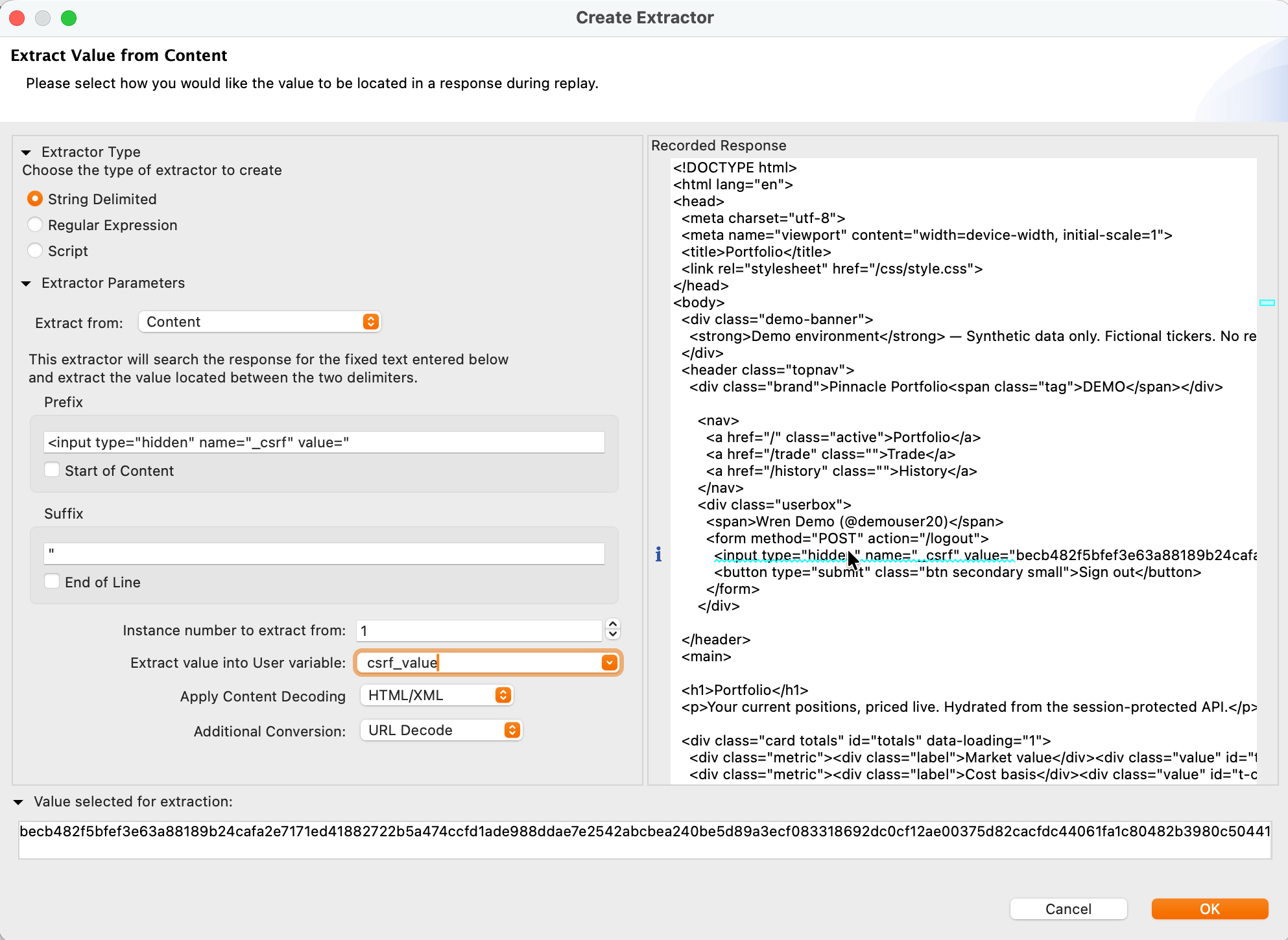
Step 3: Configure String Delimited Extractor
In Create Extractor dialog:
- Extractor Type: String Delimited (default)
- Prefix:
send_back('Accounts',' - Text immediately before the value you want
- Include quotes, punctuation exactly as they appear
- Suffix:
') - Text immediately after the value
- Variable Name:
account_id - Name for user state variable (will store extracted value)
- Match field name for clarity
Verify extraction:
- Extracted Value box shows:
c8f7a0b2-4e1d-8a9c-5f3e-2b1a9c8d7e6f✅ - Content preview highlights extraction in blue ✅
Click OK to save extractor.
Step 4: Assign Extracted Value to Field
Now connect the extractor to the field:
- Open Fields View (bottom tab)
- Find
account_idfield (the one that wasn't configured) - Double-click field to open configuration dialog
- Change Value source:
- From: Text Constant (hardcoded)
- To: User Variable
- Enter variable name:
account_id - Must match variable name from extractor
- Click OK
Result: Field now shows grey background with icon, configured ✅
Step 5: Test with Replay
- Right-click test case → Replay
- Watch for errors in Errors View
- Check result: Contact should associate with correct account
- Verify in Headers View:
- Click transaction that posts
account_id - Check POST data shows fresh extracted value (not hardcoded)
If replay succeeds: Extractor working correctly ✅
If replay still fails: Check troubleshooting section below.
Extraction Flow Complete
You've created a custom extractor (captures value) and assigned it to a field (uses value). The dynamic field now works like ASM auto-configured fields.
Multi-Variable Extractors: Name AND Value
The Problem: Dynamic Field Names
Some applications use dynamic field names, where the field NAME changes, not just the value.
Example:
Standard extractor fails: Looks for Item45 in replay, can't find it (now called Item56).
Solution: Multi-variable extractor that captures both name and value.
Step 1: Disable ASM for These Fields
First, stop ASM from trying to configure them:
- Right-click test case → Configure → Application State...
- Check "Expert Options"
- Select "Guided Configuration"
- ASM wizard runs → Shows field list
- Select problem fields (e.g.,
Item45,Item56) - Select "Never Extract" radio button
- Icon changes: ASM will skip these fields
Why: ASM's automatic extraction can't handle dynamic names. You'll configure manually.
Step 2: Create Multi-Variable Extractor
- Select page containing the fields
- Actors tab → Extractors → Add (+)
- Extractor Type: Regular Expressions
- Enter regex pattern with multiple capture groups:
Example pattern:
Explanation:
(Item\d+): Capture group 1, "Item" followed by digits (the field name)=: Literal equals sign(\w+): Capture group 2, word characters (the field value)
Configuration:
- Pattern:
(Item\d+)=(\w+) - Instance:
1(extract first match) - Variable Names:
itemName itemValue(space-separated, one per capture group)
Verify:
- Variable 1 (itemName): Shows
Item45 - Variable 2 (itemValue): Shows
Widget - Content highlights both extractions in blue
For multiple items: Create additional extractors with instance 2, 3, etc. (or copy/paste and change instance number).
Step 3: Configure Field with Dynamic Name
- Open Fields View
- Find field (e.g.,
Item45) - Double-click field
- Configure VALUE:
- Value source: User Variable
- Variable name:
itemValue - Click Name tab (important!)
- Configure NAME:
- Name source: User Variable
- Variable name:
itemName - Click OK
Result: Both field name and value are dynamic, extracted fresh on each replay.
Testing Dynamic Names
Run replay with different data:
- Recording:
Item45=Widget - Replay 1:
Item56=Gadget(different name and value) - Replay 2:
Item99=Gizmo(different again)
Extractor behavior:
- Extract name:
Item56→ stored initemName - Extract value:
Gadget→ stored initemValue - Post field:
Item56=Gadget(both dynamic)
If working correctly: Field name and value match what server sent ✅
Multi-Variable Help
Disabling Unneeded Extractors
The Problem: ASM Over-Configures Fields
Sometimes ASM creates extractors for fields that don't actually change: static values that happen to look dynamic.
Consequences:
- ✅ Wasted memory: Every configured field consumes memory during load tests
- ✅ Parsing errors: If page layout varies, extractor can't find value, and replay fails
- ✅ Cluttered Fields View: Hard to find fields that matter
Example: Application has browserId=chrome in every URL. Value never changes, but ASM configured it as dynamic.
Finding Over-Configured Fields
Indicators a field shouldn't be configured:
- Value never changes: Same in recording and all replays
- Static parameter: Application always uses same value (e.g.,
version=2.0,lang=en) - Client-side constant: JavaScript hardcodes value, doesn't come from server
Check Fields View:
- Look for fields with same value in every transaction
- Check Datasource: If it shows extractor but value is static, likely over-configured
Disabling Extractors: Multi-Select Workflow
The fast way (recommended):
- Select test case in Navigator
- Open Fields View (click Fields tab at bottom)
- Multi-select fields you want to disable:
- Click first field
- Hold Ctrl/Cmd and click additional fields
- All selected fields highlighted
- Right-click selection → Edit
- Datasource dropdown: Select Text Constant
- Click OK
Result: All selected fields changed to static (use recorded value, no extraction).
Benefits:
- ✅ Faster than editing one at a time
- ✅ Prevents future re-configuration: If you re-run ASM, these fields stay static
- ✅ Immediate: No need to re-run ASM
When to Use Text Constant
Set field to Text Constant when:
- ✅ Value never changes across recordings/replays
- ✅ Application documentation says value is static
- ✅ Field is application version, language code, or similar constant
- ✅ Extractor causes parsing errors due to page variation
Don't use Text Constant if:
- ❌ Value might change in future (dynamic user data)
- ❌ You're not certain it's static (test with multiple replays first)
- ❌ Server generates the value (even if currently same)
Alternative: Add to Auto-Ignore List
For fields that appear in many test cases:
Instead of disabling manually in each test case, add to global auto-ignore list:
- Window → Preferences → Web Performance → Configuration Wizards → Ignored Fields
- Add field name to Ignored Names list
- Future ASM runs will skip this field automatically
See Auto-Ignore & Equivalent Fields for details.
Extractor Best Practices
1. Let ASM Create Extractors First
Always run ASM before creating manual extractors.
Workflow:
- ✅ Record test case
- ✅ Run ASM (automatic or manual)
- ✅ Run replay to see if it works
- ❌ Only create custom extractors if replay fails
Why: ASM handles 95% of fields automatically. Don't spend time manually configuring what ASM already did.
2. Use String Delimited Unless Regex Required
String Delimited extractors are:
- ✅ Simpler to configure (no regex knowledge needed)
- ✅ More readable (clear prefix/suffix)
- ✅ Less error-prone (no regex escaping issues)
Use Regex only when:
- ❌ Prefix/suffix too vague (would match wrong values)
- ❌ Pattern validation needed (e.g., must be hex format)
- ❌ Multiple capture groups required (multi-variable)
3. Make Prefix/Suffix Specific
Bad prefix (too vague):
Good prefix (specific):
Include enough context to make prefix/suffix unique within the page.
4. Test Extractors with Multiple Responses
Create extractor → Verify with test:
- Run replay to get fresh response
- Check extracted value in Fields View
- Run replay again (if possible) with different server data
- Verify extractor captures different values correctly
One successful extraction doesn't prove robustness; test with varied responses.
5. Name Variables Clearly
Bad variable name:
Good variable name:
Why: You will forget what the variable does. Clear names are a gift to your future self.
Naming convention:
- Match field name when possible (e.g.,
account_idvariable foraccount_idfield) - Use descriptive names for multi-variable extractors (
itemName,itemValue) - Avoid starting with
#(ASM uses that prefix for auto-created variables)
6. Document Complex Extractors
For regex extractors, add comments explaining pattern:
Example (keep notes in external doc):
Extractor: account_id
Pattern: send_back\('Accounts','([0-9a-f-]+)'\)
Purpose: Captures SugarCRM internal account ID (hex UUID format)
Location: onclick handler in account search results
Why: Regex patterns are notoriously hard to understand six months after you wrote them.
7. Use AI to Validate Extractors
After creating extractor, ask AI to verify configuration:
Validate Extractor
Troubleshooting Extractors
Problem: Extractor Not Finding Value
Symptoms: Extractor error during replay: "Unable to extract value" or "Pattern not found".
Possible causes:
- Prefix/suffix don't match exactly: Extra space, wrong quotes, typo
- Value on different page: Extractor configured on wrong page
- Response content changed: Server sends different format in replay vs recording
- Case sensitivity:
Account≠account
Solutions:
Verify prefix/suffix:
- View response content in Content View
- Find the value manually (Ctrl+F)
- Copy exact text before and after value
- Compare to extractor prefix/suffix
- Fix any differences (spaces, quotes, case)
Check extractor page:
- Extractor must be on page that receives the value from server
- Not the page that sends it: extraction happens on response, not request
Compare recording vs replay:
- View recorded response (Content View during recording)
- View replay response (Content View during replay)
- Check if format changed: Server might send different HTML/JSON in replay
Problem: Wrong Value Extracted
Symptoms: Extractor captures value, but it's the wrong value (matches different field).
Possible cause: Prefix/suffix too vague, matching multiple places in response.
Example:
Bad prefix: value="
→ Matches BOTH fields
Good prefix: <input name="userId" value="
→ Matches only userId
Solution: Make prefix more specific (include more context).
Problem: Multi-Variable Extractor Missing Variables
Symptoms: Multi-variable extractor configured, but only one variable populated.
Possible causes:
- Regex capture groups wrong: Not enough
(...)groups - Variable names mismatched: Number of names doesn't match capture groups
- Instance number wrong: Extracting wrong match
Solutions:
Check capture groups:
- Pattern:
(Item\d+)=(\w+)(TWO capture groups) - Variable names:
itemName itemValue(TWO names, space-separated) - Must match: Same number of groups and names
Test regex online:
- Use regex tester (regex101.com)
- Paste response content
- Verify pattern matches and captures correct groups
Check instance number:
- If pattern matches multiple times, instance number controls which match
- Instance 1 = first match, Instance 2 = second match, etc.
Problem: Extractor Works in Recording, Fails in Replay
Symptoms: Extractor extracts value during recording, but fails during replay.
Possible causes:
- Server sends different format: HTML structure changed
- Value appears in different location: Moved to different page
- Conditional content: Value only appears for certain users/states
Solutions:
Compare response content:
- View recording response (from original recording session)
- View replay response (from failed replay)
- Look for differences: Extra/missing elements, changed attribute order
Check if value moved:
- Search entire test case for the value
- May have moved to earlier or later page in replay
- Extractor on wrong page for replay data
Handle conditional content:
- If value doesn't always appear, extractor will fail when missing
- May need conditional logic or error handling (contact support for complex cases)
Problem: Extractor Causes Performance Issues
Symptoms: Load test slower after adding many extractors.
Possible cause: Too many extractors configured, or regex extractors with complex patterns.
Impact:
- Each extractor parses response content
- Regex extractors slower than string delimited
- Hundreds of extractors can impact performance
Solutions:
Disable unneeded extractors:
- Set to Text Constant if value doesn't actually change
- See "Disabling Unneeded Extractors" above
Use string delimited when possible:
- Faster than regex
- Only use regex when boundary extraction insufficient
Optimize regex patterns:
- Avoid greedy quantifiers (
.*) - Use specific patterns (
\d+instead of.+) - Anchor patterns when possible (
^...$)
Troubleshooting Help
Advanced Extractor Techniques
Instance Numbers: Multiple Matches
Problem: Regex pattern matches multiple times in same page.
Example HTML:
<li>Item: <span class="id">100</span></li>
<li>Item: <span class="id">200</span></li>
<li>Item: <span class="id">300</span></li>
Pattern: <span class="id">(\d+)</span>
→ Matches all three
Instance number controls which match to extract:
- Instance 1: Extracts
100 - Instance 2: Extracts
200 - Instance 3: Extracts
300
Use case: Extract specific item from list (e.g., first, second, or last).
Copy/Paste Extractors for Similar Patterns
Workflow for multiple similar extractions:
- Create first extractor (e.g., Instance 1)
- Right-click extractor in Extractors view → Copy
- Right-click again → Paste
- Edit pasted extractor:
- Change Instance number (2, 3, etc.)
- Change Variable name (
item1→item2) - Repeat for each instance
Much faster than building each extractor from scratch.
Extracting from JSON Responses
JSON responses often need regex extractors (boundary extraction can work but regex more reliable).
Example JSON:
Extractor configuration:
- Pattern:
"userId":\s*"([^"]+)" - Captured value:
12345
Tips for JSON:
- Account for whitespace with
\s*(optional spaces) - Use
[^"]+to match anything except quotes (safer than.*) - Test pattern with actual JSON response
Extractors in Detection Rules
Once you create a custom extractor that works, you can make it automatic for future test cases by creating a detection rule.
See: Advanced Field Assignments - Custom Detection Rules
Benefit: Future recordings of same application automatically configure this field (no manual extractor needed each time).
Next Steps
- Run ASM - See what extractors ASM creates automatically
- Advanced Field Assignments - Custom detection rules for automatic extractors
- Debugging Failed Replays - Fix extraction errors
- Auto-Ignore & Equivalent Fields - Disable unneeded extractors globally
Related Topics: